
Prefab brush
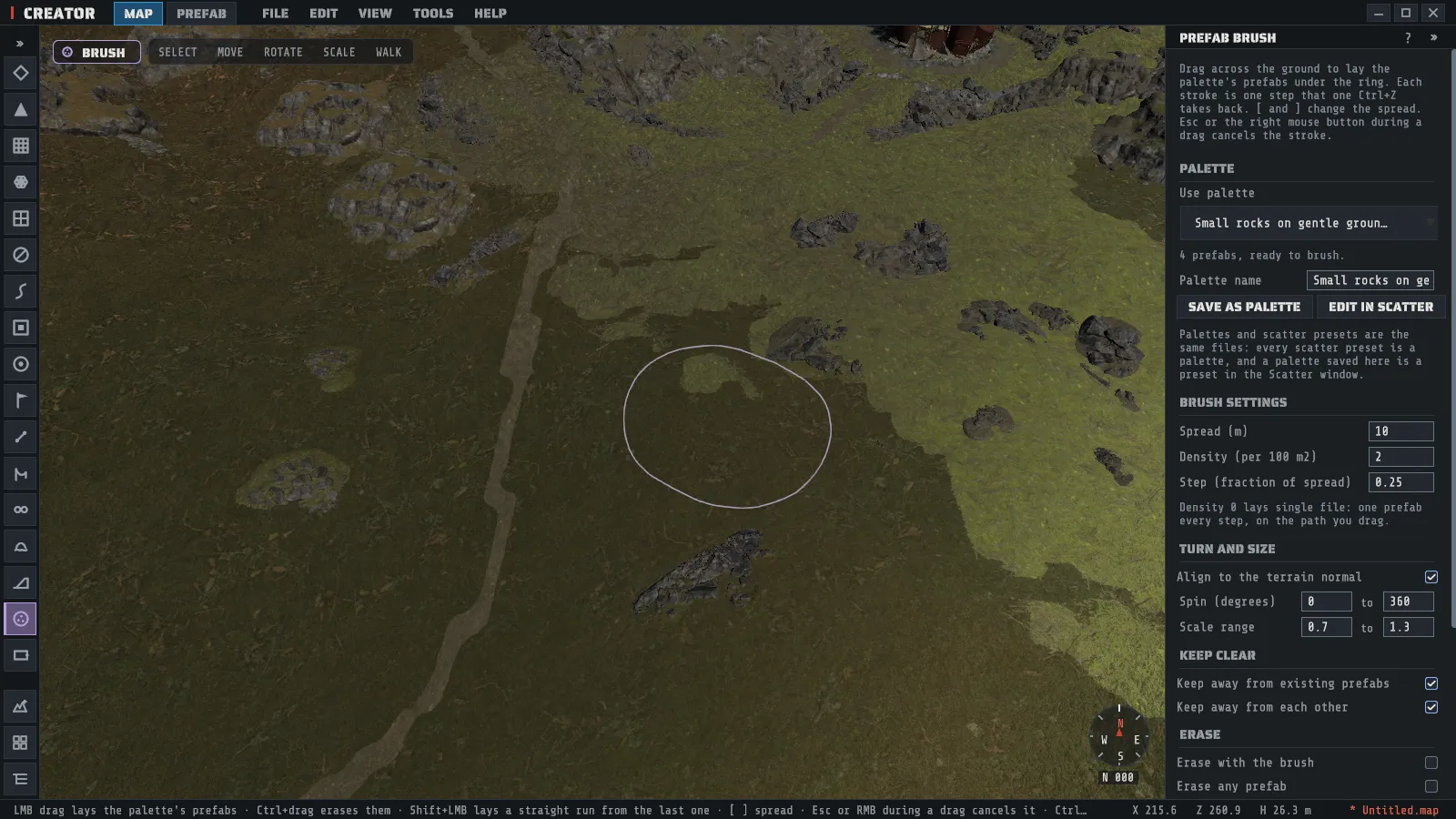
The prefab brush lays prefabs along a mouse drag. You pick a palette (a weighted set of prefabs with their turn and size rules), set how wide the brush spreads and how densely it lays, and drag across the ground. The prefabs appear under the ring as you move, and each stroke is one step that one Ctrl+Z takes back.
Pick Prefab Brush on the tool rail or in the TOOLS menu. The status bar then reads:
LMB drag lays the palette's prefabs · Ctrl+drag erases them · Shift+LMB lays a straight run from the last one · [ ] spread · Esc or RMB during a drag cancels it · Ctrl+Z takes a stroke back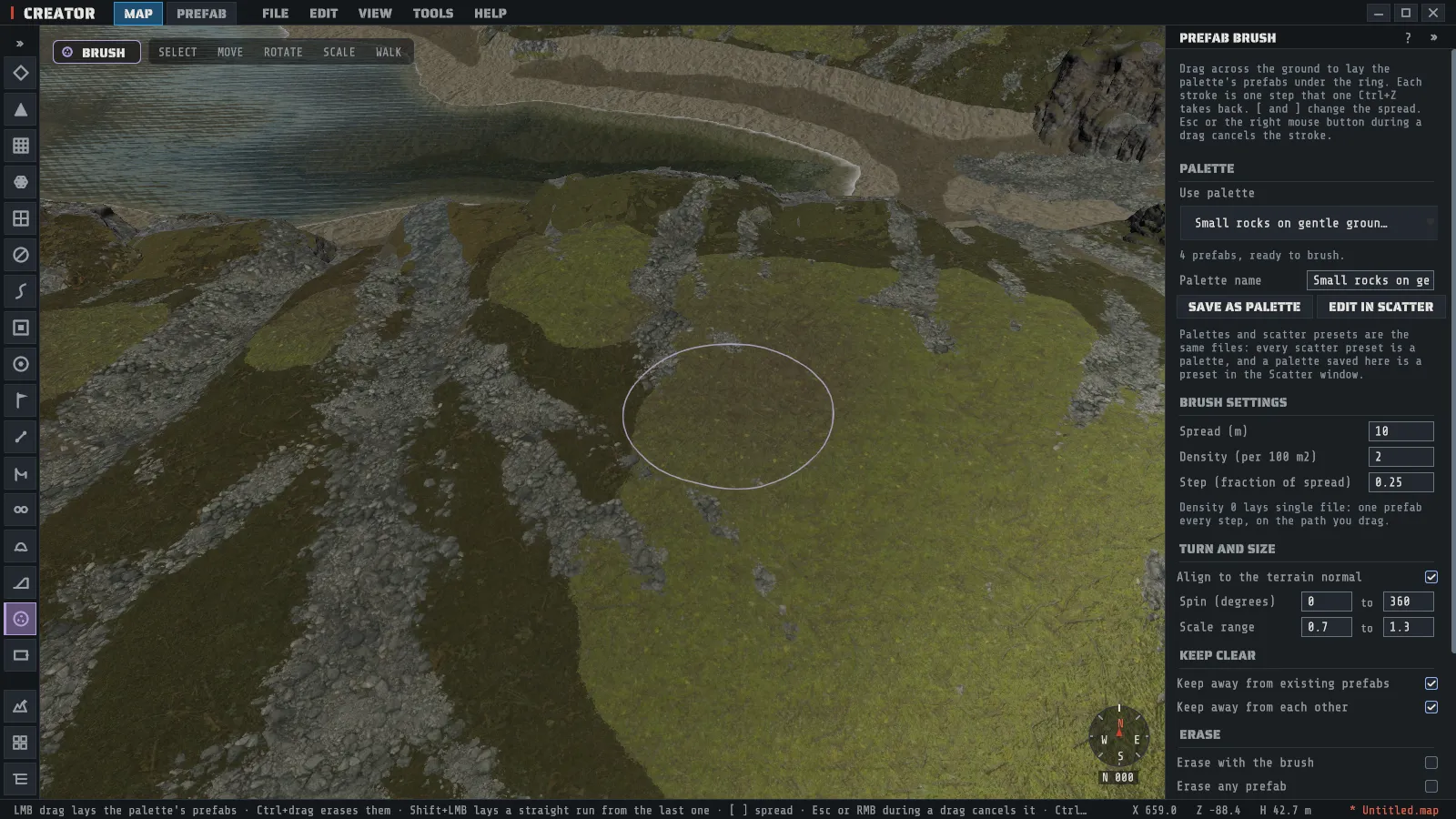
The brush and Scatter do the same placing by different hands. Scatter fills a region by rule and shows you a preview first. The brush puts prefabs where you drag, as you drag.
Brush some prefabs
Section titled “Brush some prefabs”- Pick a palette in Use palette. The line under it says how many prefabs the palette holds and when they are ready to brush.
- Set Spread (m), the radius of the ring on the ground. [ and ] change it from the keyboard.
- Set Density (per 100 m2): how many prefabs each 100 square meters of brushed ground gets.
- Press the left mouse button on the terrain and drag. Prefabs land anywhere under the ring.
- Release. The line at the foot of the panel says how many were placed, and why any were turned down.
A stroke lays the same number of prefabs over the same path whether you drag fast or slowly.
Palettes
Section titled “Palettes”Palettes and scatter presets are the same files. Every preset in the Scatter window’s list is a palette here, the three shipped ones included, and a palette you save here shows in the Scatter window. The two tools also share the one loaded preset: the palette you pick here is the preset the Scatter window is showing.
| Control | What it does |
|---|---|
| Use palette | Loads a palette. A palette that is not one of the saved files reads “(not saved)”. |
| Palette name and SAVE AS PALETTE | Saves the palette, with the brush’s three numbers, under that name. Saving a shipped palette under its own name keeps your copy and leaves the shipped one as it was. |
| EDIT IN SCATTER | Opens the Scatter window on this palette. That is where you add and remove its prefabs, set their weights, and reach every rule this panel does not show. |
The brush uses a palette’s prefabs and weights, its filters (height, slope, curvature, biome and topology), its turn, size, jitter and sink rules, its ground test and its two keep-clear distances. It does not use the palette’s region, amount, seed or walk: those belong to Scatter.
A prefab the synced game content cannot draw, or one with no id in this game build, is named in red under
the palette row and is never laid. While a palette’s prefabs are still loading the ring is dim, the panel
says Loading the palette's prefabs. and a press lays nothing.
Your palettes are files under %LOCALAPPDATA%\Rook\Creator\scatter\, one JSON file each, so you can copy
them to another PC. A palette saved by this version still loads in an older Creator’s Scatter window, which
skips the brush’s numbers and says so.
Spread, density and step
Section titled “Spread, density and step”| Setting | What it means |
|---|---|
| Spread (m) | The brush’s radius. A wider ring covers more ground per stroke at the same density. |
| Density (per 100 m2) | Prefabs per 100 square meters of the ground the stroke covers. Going back over ground in the same stroke asks for more there; with Keep away from each other on, they still keep their spacing. |
| Step (fraction of spread) | How far apart the brush stamps along the drag, as a fraction of the spread. A smaller step lays more evenly; the count stays the same. |
Single file
Section titled “Single file”Set Density (per 100 m2) to 0 and the brush lays single file: exactly one prefab every step, on the path you drag, which is how you draw a fence line or a row of trees. The step is still a fraction of the spread, so a 4 m spread at a step of 0.75 lays one prefab every 3 m. The ring shows a small cross at its center, where the prefab goes.
Straight runs
Section titled “Straight runs”Shift+click lays a straight single-file run from where your last stroke ended to the point you click: one prefab every step, evenly stepped end to end, as one undo step. The run ends on its last whole step, and the next Shift+click carries on from there, so a row of clicks draws a fence line corner by corner. With no stroke laid yet on this map, the first Shift+click lays one prefab and starts the line.
A straight run is always single file, whatever Density (per 100 m2) says.
Turn, size and keeping clear
Section titled “Turn, size and keeping clear”The panel carries the rules most often changed while brushing. They are the palette’s own, the same rows as in the Scatter window:
| Row | What it does |
|---|---|
| Align to the terrain normal | Tilts each prefab so its up follows the slope. Off, it stands straight up. |
| Spin (degrees) | A random turn about the prefab’s up. |
| Scale range | A random size, the same on all three axes. A palette that sizes each axis on its own shows a line saying so instead: its ranges are in the Scatter window. |
| Keep away from existing prefabs | Lays nothing too close to a prefab already on the map. |
| Keep away from each other | Keeps the stroke’s own prefabs apart, across the whole stroke. |
One stroke, one undo step
Section titled “One stroke, one undo step”Ctrl+Z takes a whole stroke back and Ctrl+Y brings the same prefabs back. Each press of the mouse button is its own stroke and its own step.
- Esc, or the right mouse button, during a drag cancels the stroke: everything it laid is taken back and the undo history is as it was.
- Undo pressed in the middle of a drag first records the stroke as far as it got, then undoes it.
- One stroke lays at most 1,985 prefabs, so a single step never crowds out the rest of the undo history. The panel says when a stroke is full; release and press again to carry on in a new step.
The brush erases the same way it lays. Turn on Erase with the brush, or hold Ctrl while you drag to erase for one stroke, and the ring turns red. Every prefab whose own center point is under the ring goes as the ring passes over it, and one Ctrl+Z brings the whole stroke’s worth back.
| What is under the ring | What the erase does |
|---|---|
| A prefab the palette lists | Removed. A prefab the palette lists at weight 0 still counts as the palette’s. |
| Any other prefab | Left alone, unless Erase any prefab is on. |
| A monument | Never removed. |
| A locked or hidden prefab | Never removed. |
| A piece of a custom prefab group | Never removed: a group is moved or removed whole, from the Select tool. |
The line at the foot of the panel says how many prefabs went and how many were left alone, by reason. Esc, or the right mouse button, during the drag puts everything the stroke removed back. An erase stroke stops at 1,985 prefabs, like a laying stroke; release and press again to carry on.
Erasing needs no palette at all when Erase any prefab is on. With it off and an empty palette there is nothing of the palette’s to erase, and the panel says so.
When nothing is laid
Section titled “When nothing is laid”The line at the foot of the panel names the three most common reasons prefabs were turned down, with a count
for each, in the same words the Scatter window uses: by slope, by height, too close to each other,
too close to a prefab already there, not sitting on the ground. The shipped palettes keep off roads,
rivers, monuments and the beach, and off steep ground, so a stroke across those lays nothing there. Widen the
rule in the Scatter window (EDIT IN SCATTER), or brush somewhere the palette allows.
Give it a key
Section titled “Give it a key”The prefab brush has no shortcut out of the box, because every letter is taken. To give it one, open Preferences, go to KEYBINDS and click the binding beside Prefab brush tool. See Preferences.
The prefab brush works on the map. While you are editing a prefab in the workspace, or with no map open, it asks you to switch to the MAP tab or open a map first.