Ramps
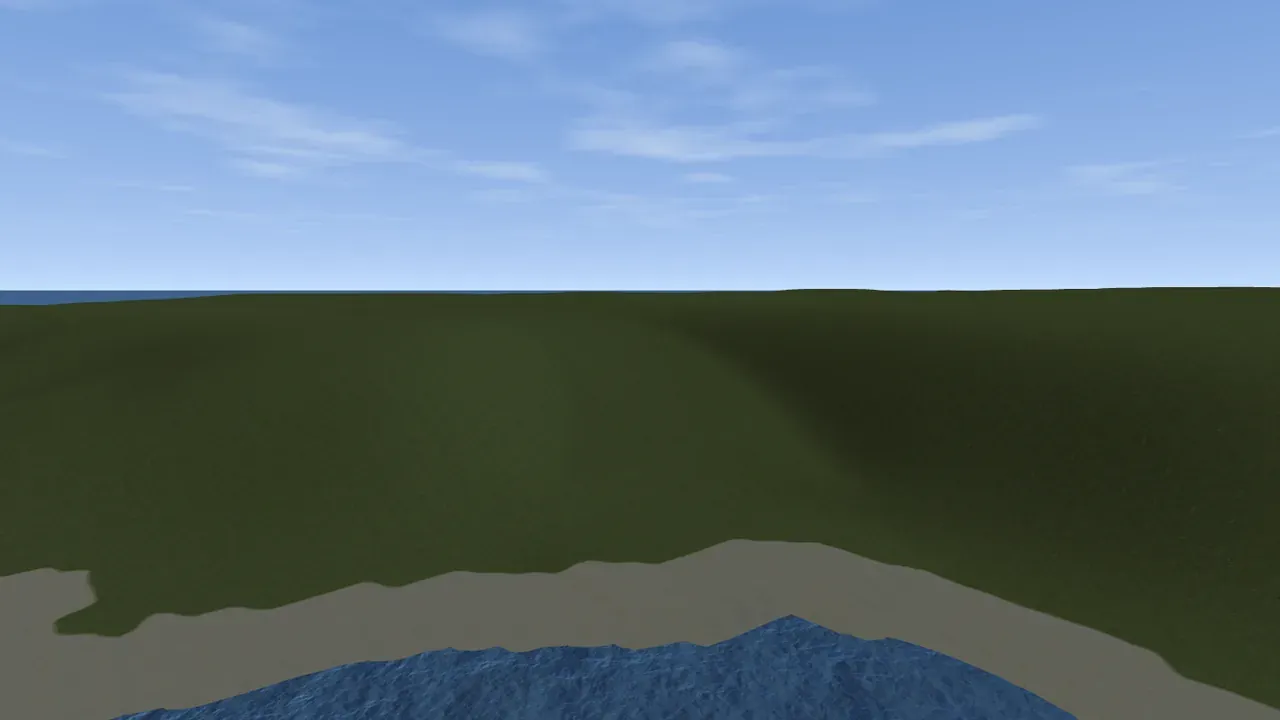
A Rust map with tall cliff coasts and mountain bands needs ways up them, or players and vehicles get stuck below. Crucible cuts ramps into the terrain for you: a climb about as wide as a Rust road plus its roadside, cut into the cliff or built up against it, with its foot on the land and its top on the ground above.
Ramps are part of the heightmap itself. They carry into the exported .map and the in-game view like any other ground, with no prefab and no special texture.
Ramps on multi-island maps
Section titled “Ramps on multi-island maps”Open the island randomizer drawer (I). The Ramps switch sits at the top of the map styles column.

With it on, every multi-island Conjure finds the cliffs a player cannot drive past and puts ramps up them. Bigger maps get more of them. Flipping the switch adds or removes the ramps on the multi-island map you have open straight away.
They come in a few kinds:
- Straight ramps climb one cliff, in one or two levels with a flat landing between.
- Beach ramps start on the sand and cut inland through the cliff. Most of them bend as they climb.
- Winding ramps reach ground no straight ramp can, such as a volcano’s rim or a tall plateau, by winding up the slope.
+ Spawn adds more ramps to the map you have open, wherever they are needed. Press it again for more; ramps already on the map stay as they are.
See them: press M
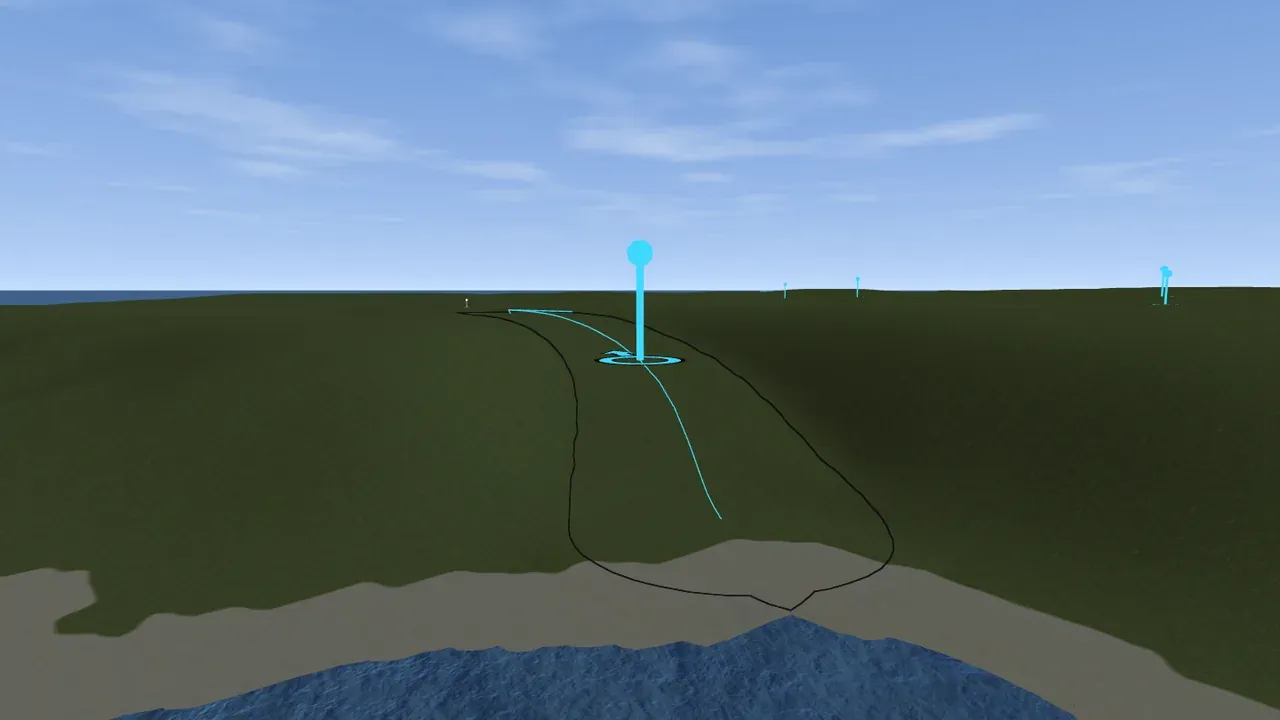
Section titled “See them: press M”Press M (or the ramp button in the view toolbar) to show every ramp. Each one gets a thin outline on the ground and a marker: a ring with a handle on top and an arrow pointing up the climb.
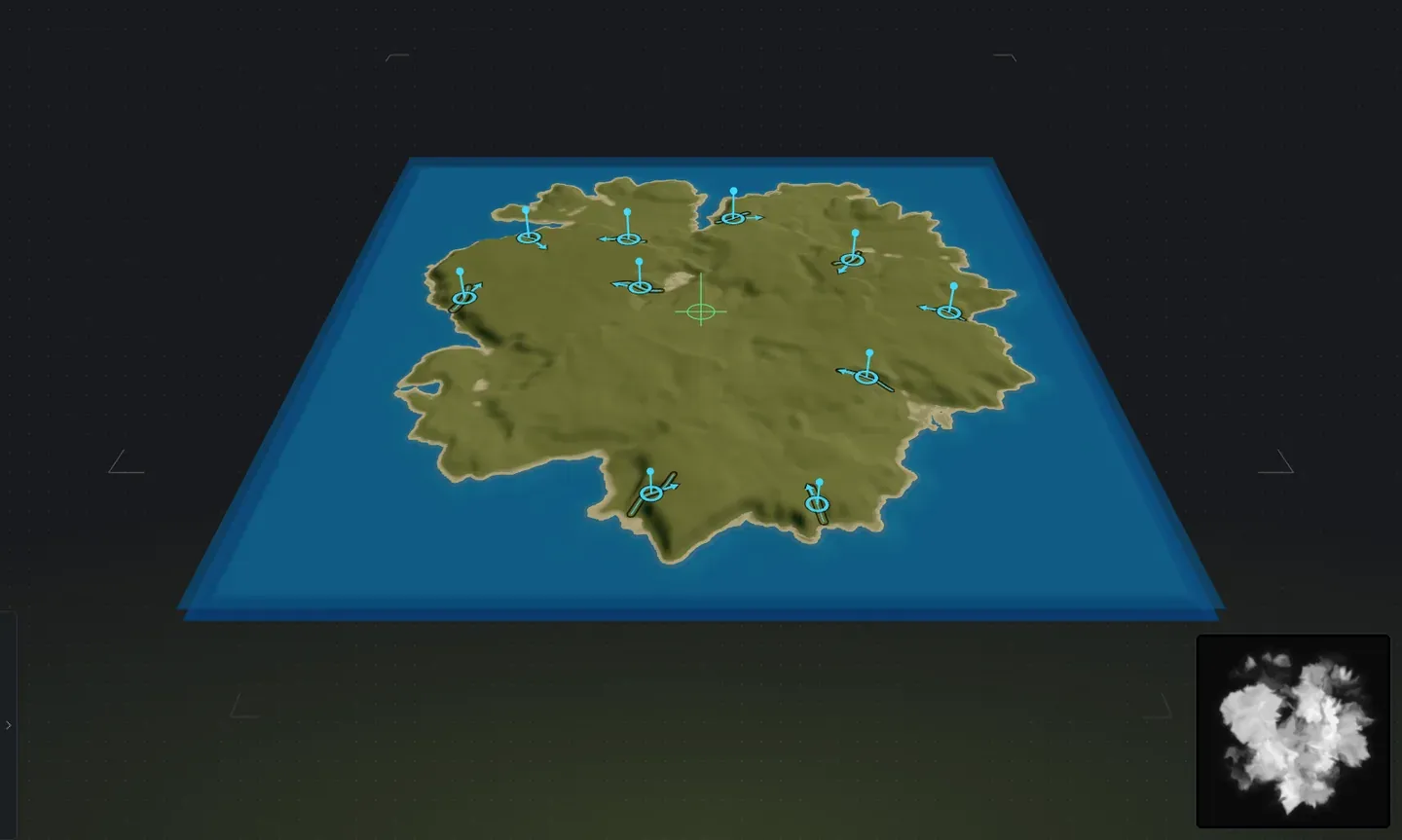
The marker changes as you work with it:
- Blue: a ramp.
- Light blue, bigger handle: the ramp under your cursor. The pointer turns into a hand.
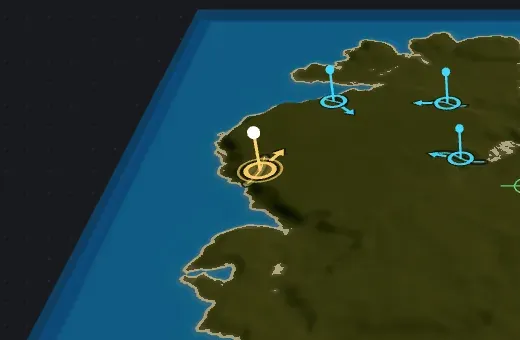
- Gold with a halo: the ramp you selected. A selected ramp keeps its marker even with M off.
- White with a halo: a ramp you are dragging.
- Gold line to a white target: a ramp waiting for its end point.
Select, move or delete a ramp
Section titled “Select, move or delete a ramp”- Select: click a ramp. This works in every view, with M on or off.
- Deselect: press Escape.
- Delete: select it and press Delete. It stays gone when the map rebuilds.
- Move: drag its marker (with M off, select the ramp first, then drag it). When you let go, that point is the ramp’s new start, and a gold line follows your cursor. Click where the ramp should end, and it is rebuilt between your two points, fitted to the ground. Escape or a right click calls it off and nothing changes.
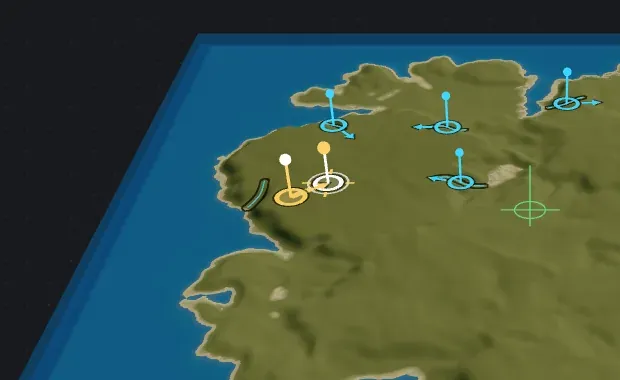
If the climb between your two points is taller than one level, the ramp picks how many levels it needs. Undo and Redo (Ctrl + Z, Ctrl + Shift + Z) step back through all of it and keep your selection.
Place your own: + Add new
Section titled “Place your own: + Add new”Click + Add new in the drawer. Your pointer becomes a ramp marker. Click the map where the ramp should start, then click again where it should end. The new ramp is built between the two and selected, so its sliders are ready.
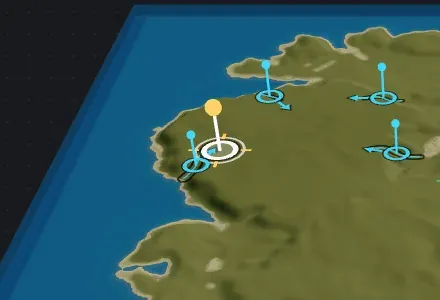
Escape or a right click cancels. This works on any map, including a single island or a map you built by hand with the Ramps switch off.
Shape a ramp: the Ramp sliders
Section titled “Shape a ramp: the Ramp sliders”Select a ramp and the Ramp group in the sliders sidebar comes alive. Moving any row on an automatic ramp makes it one of yours, where it already is.
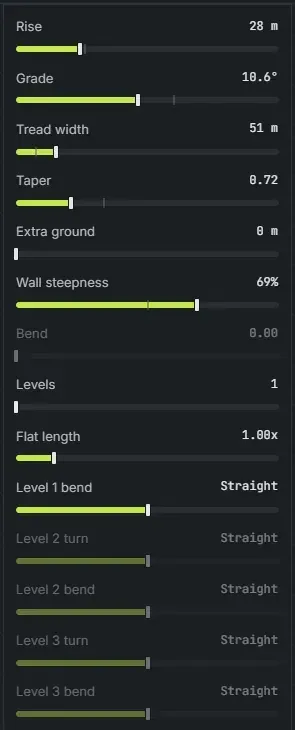
When the ground stops a ramp short of what a row asks for, the row says what was built, for example “80 m (52 m built)”. The full list of rows is in the sliders reference.
In the in-game view
Section titled “In the in-game view”Everything above works in the in-game view too: click, drag, Delete, Escape, M and + Add new. Without markers a ramp is just ground, so this is the place to check how the climb really looks.