
Dungeon generator
The dungeon generator builds a structure for you out of pieces that join at their openings: underwater lab modules, train tunnel tiles, cave pieces, or pieces you gave sockets yourself. You write a rule file that says which piece to start from, which pieces may follow and how often, and how far to grow; the generator joins piece to piece at compatible sockets until a limit is reached, then closes the openings left over with end pieces. The same rule file and the same seed always grow the same structure.
Open it from TOOLS > Dungeon Generator…, or, in a prefab document, from the Dungeon Generator… entry in the document’s edit commands. It grows into the open prefab document when there is one and onto the map otherwise; Target changes that. The window drags by its title bar, resizes from its bottom-right corner and opens where you left it; its ? opens this page. PREVIEW, APPLY and the result line stay at its foot while the rest scrolls.
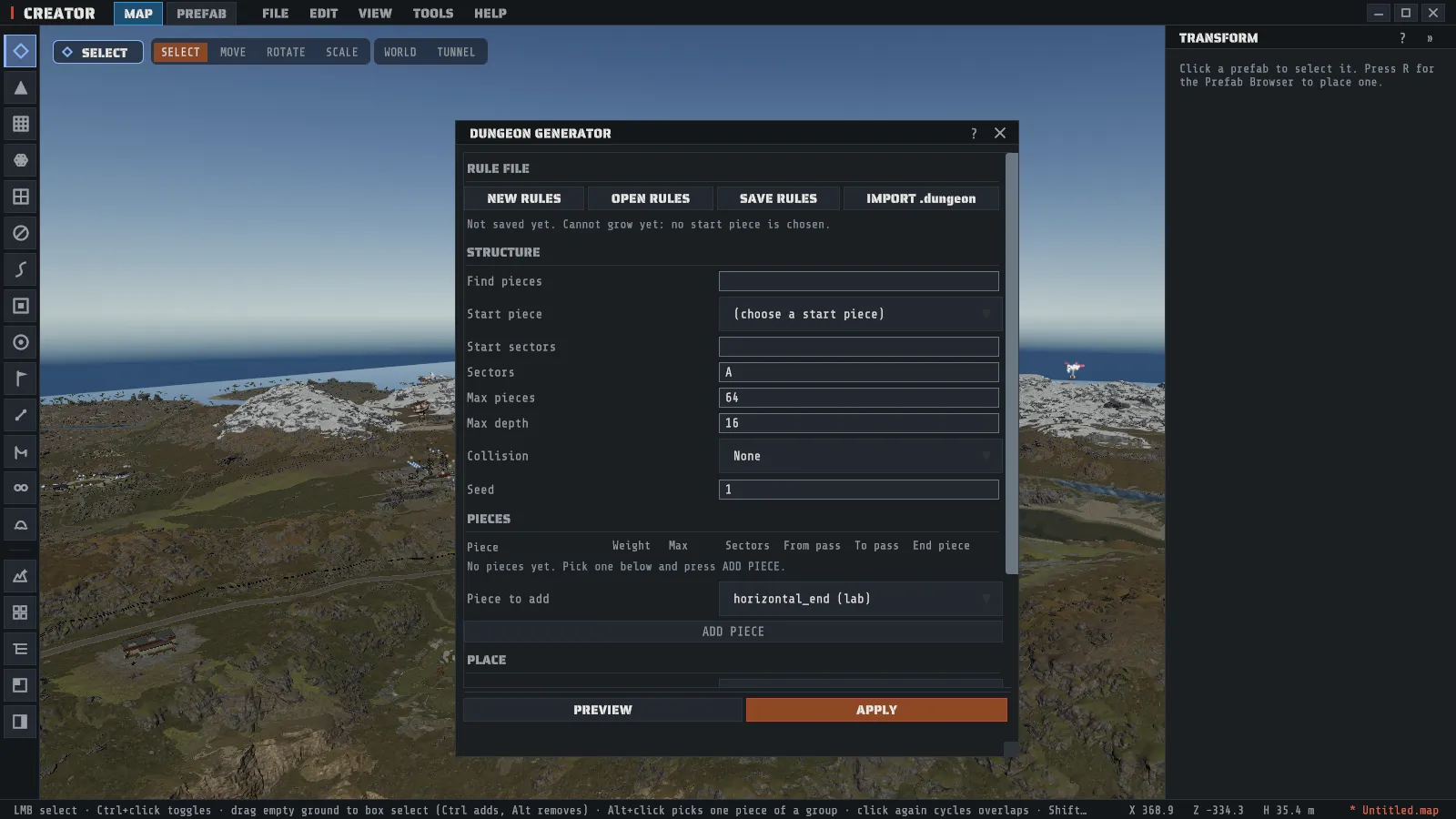
Grow your first structure
Section titled “Grow your first structure”- Click NEW RULES.
- Pick the piece to start from in Start piece (it reads (choose a start piece) until you do). Type part of a name in Find pieces to shorten the list.
- Pick a piece in Piece to add and click ADD PIECE. Do this for every piece the structure may use, the start piece included if it may repeat.
- Click PREVIEW. Nothing is placed yet: every piece is drawn as an outline at the anchor, and the line under the buttons says how many pieces grew, the depth reached and how many sockets are still open.
- Change a number, a piece or the seed and preview again until you like the result.
- Click APPLY.
The whole structure is one step in the undo history, so Ctrl+Z takes every piece back together.
The rule file
Section titled “The rule file”A rule file is a small text file with the extension .dungeon.json. SAVE RULES writes it wherever you
choose, and OPEN RULES reads one back. Creator keeps no copy of its own, so a rule file is yours to keep
beside your maps, share or put under version control. Once you change the table, the line under the buttons
reads (unsaved changes) after the file’s name, and NEW RULES, OPEN RULES and IMPORT .dungeon ask
before they throw those changes away: DISCARD goes ahead, GO BACK keeps them.
| Setting | What it does |
|---|---|
| Start piece | The piece growth starts from. It is always placed |
| Start sectors | The start piece’s sector letters. Empty means every letter of the rule file |
| Sectors | The rule file’s sector letters. A by default |
| Max pieces | The most pieces one growth places, the start piece included and the end pieces not. 64 by default, from 1 to 20000 |
| Max depth | The most growth passes away from the start piece. 16 by default, from 0 to 4096 |
| Collision | Which pieces may overlap: None, End pieces only or All pieces. None by default |
| Seed | The number the growth starts from: the same rule file and seed grow the same structure. RANDOM picks a new one |
A number field takes only what it can use: a value out of its range is set to the nearest end, anything that is not a number is refused, and the line under the buttons says the range either way.
Sectors
Section titled “Sectors”Every piece belongs to one or more sectors, each a letter from A to Z. Two pieces join only when their
sectors share a letter. With one sector, A, everything can join everything, which is what most structures
want. Give two wings of a structure different letters and a piece of one wing never grows onto the other; give
a corridor both letters and it can link them.
The piece table
Section titled “The piece table”Each row is one piece the growth may use.
| Column | What it does |
|---|---|
| Weight | How often this piece is chosen among the pieces that fit one opening (the .dungeon format calls it emphasis). 0 never chooses it |
| Max | The most of this piece one growth places. any is no limit |
| Sectors | The piece’s sector letters. Empty means every letter of the rule file |
| From pass | The first growth pass the piece may be placed in |
| To pass | The last growth pass the piece may be placed in |
| End piece | An end piece: used only after growth stops, to close the openings left over |
Hover a piece’s name for its full path and whether it can be placed. A name shown in the warning color is a piece this game content cannot place, and the tip says why.
ADD PIECE ticks End piece by itself for a piece with only one opening, because such a piece ends a corridor. Untick it to let that piece grow like any other.
How the structure grows
Section titled “How the structure grows”Growth works outward from the start piece, one pass at a time. In each pass every open socket is offered, in an order the seed decides, to the pieces that may be placed at that depth, weighted by their weight. A piece is placed only where its socket meets the open one exactly, where it shares a sector letter with the piece it joins, and where it overlaps nothing it may not overlap. When a newly placed piece’s opening lands on another piece’s open socket, the two are joined there too, so corridors close into loops.
Growth stops when Max pieces is reached, when Max depth is reached, or when no piece fits any open socket. Then the end pieces close what they can.
Overlap is tested with the game’s own collision boxes for the piece where it has them. A piece with none is tested only at its openings, and the preview’s notes count those pieces so you know.
Where it goes
Section titled “Where it goes”| Target | Where the start piece goes |
|---|---|
| This prefab document | On the document’s pivot. The document’s own pieces are obstacles, and every joint is saved with the document |
| The map, at the anchor | At the anchor, below |
On the map, Anchor picks the point to grow from:
- The selected prefab: the first selected prefab’s position, turned with it about the vertical only, so the structure always stands upright.
- A picked point: click PICK POINT (it reads CLICK THE GROUND (Esc CANCELS) while it waits), then click the ground. A right click, Esc or the button again cancels. PICK POINT shows only when the target is the map.
On the map the new pieces are selected after APPLY, so you can move the whole structure at once with the Move tool. Because the new structure is then the selection, the line under Anchor names it as the structure you just placed: a second APPLY would grow from it. A growth that would pass the map’s placement limit is refused with the reason, and nothing is placed.
Importing a .dungeon file
Section titled “Importing a .dungeon file”IMPORT .dungeon reads the plain-text .dungeon rule format some map makers already use and turns it into a
new rule file. Two things that format does not carry are filled in, and the notes under the buttons say so: the
seed starts at 1, and no piece is marked End piece, so tick End piece on the pieces you want used as ends. The
.dungeon file itself is never written to; SAVE RULES saves a .dungeon.json wherever you choose.