
Run a custom map on your server
Crucible Local Server runs custom Rust maps as easily as procedural ones. You assign a .map file to a server, choose how it reaches the Rust dedicated server, and start. Terrain made in Crucible Heightmap skips the file juggling entirely: your Heightmap exports are scanned automatically, ready to assign in one click.
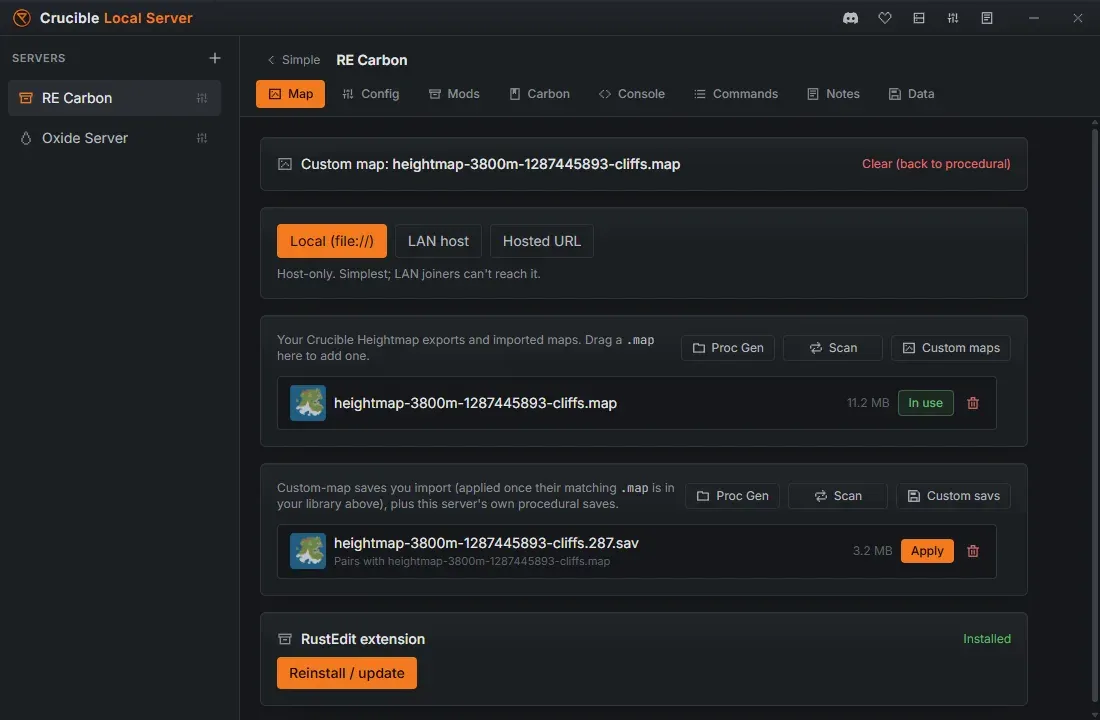
The Map tab
Section titled “The Map tab”The Map tab is four cards, top to bottom:
- What this server is set to run: either “Custom map: name” or “Procedural map” with its seed and size. A custom map gets a Clear (back to procedural) link on the right.
- Delivery: the row of chips that decides how Rust fetches a custom map, with a line under it explaining the chip you picked.
- Maps: your Crucible Heightmap exports, your imported custom
.mapfiles, and this server’s own procedural worlds. - Saved worlds: the
.savfiles, the worlds that were built on those maps.
Every row in the bottom two cards carries a thumbnail, a button to select or deselect it, and a Delete button.
The tab locks while the server runs
Section titled “The tab locks while the server runs”Rust reads the world once, at startup, so swapping it under a live server would only make the app lie about what is loaded. While the server is up, every action on this tab is disabled and a line at the top says so:
Stop the server to change its map or apply a saved world. It loads the world once, at startup.
Stop the server, change the map, start it again.
Assign a map from the Quick view
Section titled “Assign a map from the Quick view”You do not have to open the Map tab to change a map. The Map button in the Quick view action row, beside Start, Stop and Restart, opens a menu with:
- Procedural, which switches the server back to a procedural world and rolls a fresh random seed.
- Every map in your library, one click to assign.
- Every Crucible Heightmap export you have not imported yet, tagged export. Picking one imports it into your library and assigns it to the server in the same click.
An export you made a minute ago is already in the list. Like the Map tab, the button is locked while the server runs.
Procedural worlds
Section titled “Procedural worlds”The worlds Rust generates for a server are saved into that server’s own folder on first boot. Crucible scans them in place and lists each one (a proceduralmap.<size>.<seed> row) in the maps panel. They are never copied into your maps library: a procedural world belongs to the server that made it.
Picking a procedural world is not a custom-map assign. It sets the server’s seed and world size so Rust regenerates (or reuses its cached copy of) that exact world:
- The world a server currently runs shows a green In use label. Click it to deselect it, which rolls a fresh random world for the next start.
- Any other procedural world shows Use. Click it to switch the server to that seed and size.
Use Proc Gen to open the server’s own folder, and Scan to re-scan it after a new world has been generated.
Custom maps
Section titled “Custom maps”Custom .map files live in a shared maps library that every server can pick from. To add one:
- Drag a
.maponto the window to import it. - Press Scan to pick up your Crucible Heightmap exports from the shared output folder, then Import the ones you want.
- Use Custom maps to open the library folder directly.
Each library map shows Assign (or a green In use label you can click to clear back to procedural). Assigning a custom map drops the server’s procedural settings (seed and world size), because the map file defines the world instead.
Saved worlds
Section titled “Saved worlds”A .sav is the world that was built on a map: bases, deployables and loot. The maps panel and the saved-worlds panel are chosen independently, so you decide separately whether to start fresh on a world or resume a saved build of it:
- The active save shows a green In use label. Click it to deselect the save. The map stays selected, so the server starts a fresh world on the same seed and size.
- A save you deselect is not deleted. It is parked as a red Backup, not loaded row that you can select again at any time.
- Selecting a parked backup swaps it back in as the active save. Whichever save was active becomes the backup.
For a custom map, import a .sav by dragging it onto the window or opening Custom savs, then press Apply. A save only loads against the map it was built on, so Apply stays disabled until the matching .map is in your maps library. The row tells you which map it pairs with, or that its map is missing. See wipe, back up, and reuse a world.
Map previews
Section titled “Map previews”Every map and save row shows a real top-down preview thumbnail, and the assigned world is shown larger in the Quick view: land and ocean, splat-colored and hillshaded, so you can tell worlds apart at a glance. This works for both procedural worlds (rendered from the world Rust generates on first boot) and custom .map files.
How a custom map is delivered
Section titled “How a custom map is delivered”Rust loads a custom map from a URL, so Crucible Local Server gives you two delivery options, chosen from a chip at the top of the Map tab:
- Local (file://): the map loads straight from disk. This is the default and the simplest for a server on your own PC; players on other PCs cannot download it.
- Hosted URL: for players on other PCs, upload the
.mapsomewhere that gives a direct download link and paste that link in Config. It must be an https link: Rust only downloads a map over https, and a plain http link is refused before the server starts.
Custom data maps and RustEdit
Section titled “Custom data maps and RustEdit”Maps built in RustEdit with custom puzzles, spawns and the rest need the RustEdit extension to load that custom data. The Map tab has a RustEdit extension row that shows whether it is Installed or Not installed on that server, with a button that installs it into that server’s own files. The button reads Reinstall / update once it is there, which is what you use after a Rust update, and it is available while the server is stopped.
The extension is loaded by a mod loader, so the row only appears on a Carbon or Oxide server. A vanilla server cannot host it, and Crucible will not quietly convert your vanilla server to a modded one to make it fit: create a Carbon or Oxide server for a RustEdit custom-data map.
Deleting maps and saved worlds
Section titled “Deleting maps and saved worlds”Every row has a Delete button, and what it removes depends on the row:
- Deleting a procedural world removes the whole world: its save, its backups, and its occlusion data alongside the map.
- Deleting a saved world removes only the save. The map is kept, so you can start fresh on it or apply a different save.
- A custom map a server is still set to load cannot be deleted. Rust would fall back to generating a procedural world instead, and the server would silently come up as the wrong map. Point that server at a different map first, or clear it back to procedural.
Testing a map in-game
Section titled “Testing a map in-game”Walking your map in first person is the surest way to catch terrain that does not play well, monuments in bad spots, or cliffs that block movement. For the wider workflow and what a finished custom map looks like in game, see test your map on a local Rust server.
Related
Section titled “Related”- Export a Rust
.mapfile from Crucible Heightmap. - Create your first Rust server.
- Console, RCON, and admin tools for moving around and testing your map.