
Sliders reference
Crucible Heightmap shapes terrain with sliders, grouped in the sidebar. This page covers every slider: what it does and when to reach for it, with its range and default. Double-click any slider to reset it to its default, and you can save your own defaults (see Settings).
Heights map to Rust’s world height of 0 to 1000 meters, with sea level around 500, so the elevation sliders are in meters on that scale.
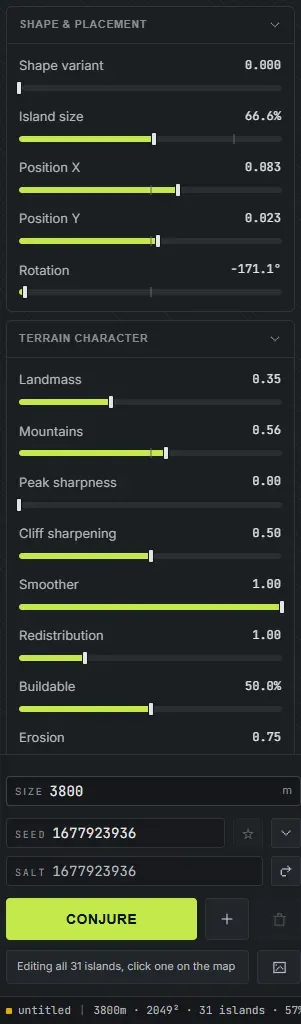
Shape and placement
Section titled “Shape and placement”These set the island’s overall shape, size, and where it sits on the map.
- Shape variant (0 to 1, default 0): morphs the island’s base outline into a different related shape. Use it to roll a different coastline without changing the seed. On a drawn island it re-rolls the small wobble along the coast and the hills inside, and the outline you drew stays as it is.
- Island size (10% to 120%, default 100%): scales the whole island up or down. Smaller leaves more open ocean, larger fills the map.
- Position X and Position Y (-0.4 to 0.4, default 0): slide the island across the map. Use them to leave room for a second island or to off-center the land.
- Rotation (-180 to 180 degrees, default 0): spins the island in place. Handy for orienting a coastline or a bay a certain way. With several islands selected, or with nothing selected on a multi-island map, it turns the whole group as one piece: the layout swings round the middle of the selection and every island keeps its own shape, exactly as if you had turned the map itself.
- Coast roughness (0 to 1, default 1) and Cliff coast (0 to 1, default 0): only on a drawn island. Coast roughness is how ragged the shoreline is, low keeping it close to the line you drew. Cliff coast is how steeply the island rises from the sea, from a gentle climb behind the beach to a cliff at the waterline.
Terrain character
Section titled “Terrain character”These control how the land feels: rugged or smooth, mountainous or flat, buildable or wild.
- Landmass (0 to 1, default 0.35): raises or lowers the overall landmass elevation. Higher lifts the terrain up, lower sinks it down.
- Mountains (0 to 1, default 0.50): how prominent the mountains are. Higher raises taller, bolder peaks, lower keeps the terrain low and rolling.
- Peak sharpness (0 to 1, default 0): turns broad, flat summits into alpine ridgelines. It reshapes the top of the land you already have rather than adding height, so the coastline and the amount of buildable ground stay where they were. At 0 nothing changes.
- Cliff sharpening (0 to 1, default 0.50): how sharp and steep cliffs are. Higher gives crisp, dramatic cliff faces, lower softens them.
- Smoother (0 to 1, default 1.0): smooths the terrain overall. Raise it to calm noisy terrain, lower it to keep fine detail. This is the one slider on the page that applies to the whole map rather than to the selected island.
- Redistribution (0.5 to 2.5, default 1.0): redistributes the existing landmass. Lower values reduce terrain to create more beach space, higher values raise up the heightmap.
- Buildable (0% to 100%, default 50%): targets how much flat, buildable ground the map has, the kind of ground players put bases on. Raise it for base-friendly maps, lower it for wild, vertical terrain.
- Erosion (0 to 1, default 0.75): weathers the whole map. It barely changes the shape of your land and never moves the coastline; mostly it adds gravel for a worn look in game. At 0 there is no gravel anywhere; raise it for a rougher, more worn surface.
A few of these sliders, low value on the left, high on the right:
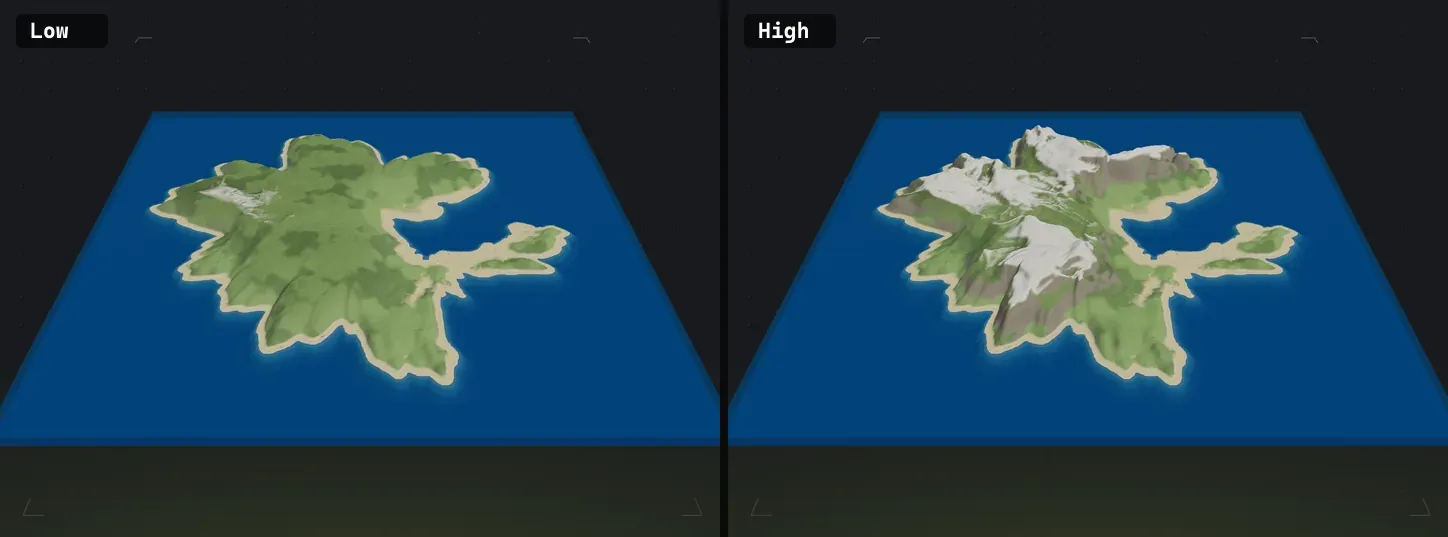 Mountains: low (left) keeps terrain low and rolling, high (right) raises tall peaks.
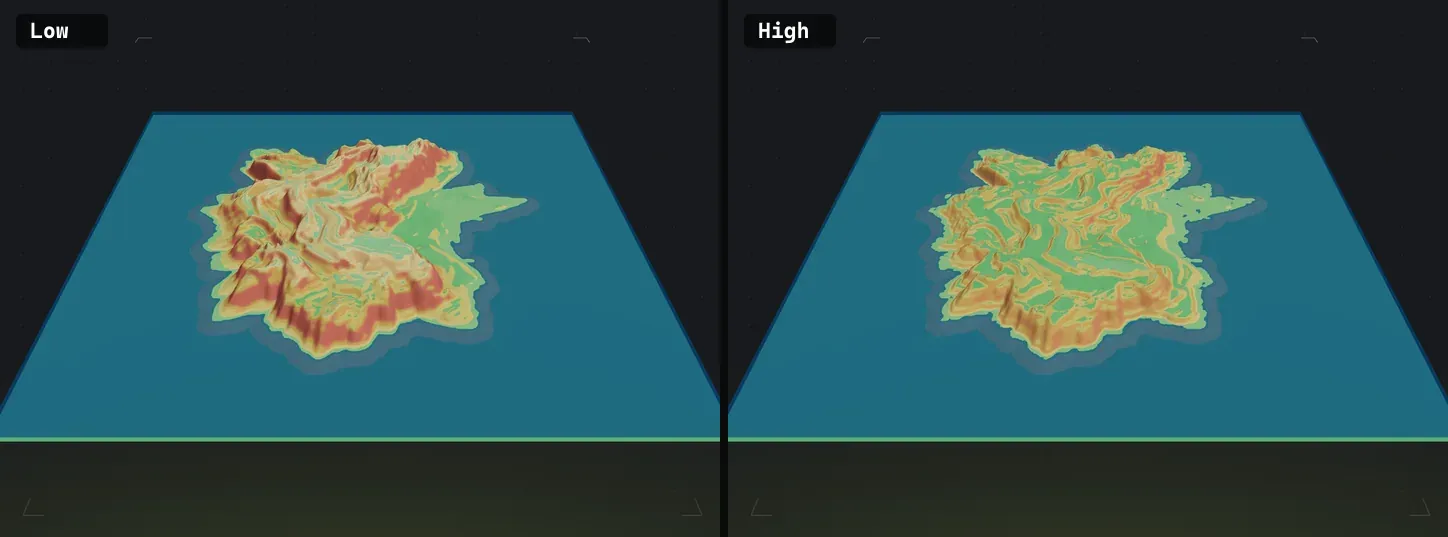 Buildable: low (left) is more naturally wavy, high (right) adds flat, base-friendly ground. Most noticeable around where slopes converge with flat terrain.
Channels
Section titled “Channels”These are not in the sidebar. Channels is its own tool: the square button to the right of the brush buttons in the toolbar, or press L. The controls live in its dock, and beside its drawing pad. Full page: Channels.
They are listed here because they are sliders and this is the slider reference. A channel is open water cut clean across the whole map, severing every landmass in its path, so the count means the same thing on a one-island map and a thirty-island one.
- Cuts (0 to 16, default 0): how many channels cross the map, each one aimed through your land. Start at 1 or 2 for a map split into a few big pieces, go higher for a broken, waterway-heavy world.
- Inlets (0 to 12, default 0): how many inlets are cut into the coast, running in from the open sea and stopping inland, for fjords and harbours. Each opens about 200 to 280 m wide and moves with its island.
- Variant (0 to 1, default 0): slides the cuts and inlets to a different layout without touching your seed, the same way Shape variant rerolls an outline. Use it when you like the map but not where the water runs.
- Width (a quarter to four times the base width, shown in metres): how wide the rolled cuts are, the strait’s included, in metres of open water. The widest player boat is 18 m across, so 36 m or more takes any boat with room to steer.
- Width random (0 to 1, default 0): spreads the widths apart. At 0 every cut is the same size; at 1 some are creeks and others open straits.
- Edge variation (0 to 1, default 1): how ragged the banks are. At 0 a cut has straight sides; the default gives bays, headlands and peninsulas along its length.
- Depth (2 to 30 m, default Sea): how deep the water in the cuts gets. Water bases only place in 2 to 4 m of water, and 12 m or less stays in reach of a bridge pier in Crucible Creator.
Draw cuts opens a pad where you draw channels by hand over your real map, with Draw width (20 to 600 m), Smoothing (0 to 1, default 0.3) and, on a picked cut, Taper (-1 to 1, default 0). Hand-drawn cuts are added to the ones the sliders roll rather than replacing them, and they stay put while you keep rolling the land underneath. Width random and Variant give your drawn cuts their own random width as well; the rolled Width leaves them alone.
Channels change the terrain itself, so they carry into the exported map, the in-game view and the worldgen (the water is real ocean, with the shoreline layers to match).
Volcano
Section titled “Volcano”This group is always in the sidebar and stays greyed out until the island you have selected is a Volcano, Crater or Caldera. See volcanoes and craters for what the three styles are.
- Height (default 0.45): how tall the cone stands. Reads out in metres.
- Cone width (default 0.15): how wide its base is, in metres.
- Crater width (default 0.045): the vent’s width. Held under the cone width, so the rim always has cone to sit on.
- Crater depth (0.2 to 2.5, default 1): how deep the vent cuts. The floor cannot sink below sea level, so on a short cone this stops having an effect before the top of the range.
- Crater floor (0.15 to 0.95, default 0.6): how much of the bowl is flat floor rather than inner wall. This is the control that makes a crater a walkable dent instead of a pit.
- Rim ruggedness (0 to 1, default 0.6): how much the rim’s height varies as it goes round. Low is a clean cone, high is a broken ring.
- Lava level (default 55%): how full the vent is. Volcano only, since a crater and a caldera carry no lava.
Five rows apply to a caldera only, and grey out on the other two:
- Water width (0 to 0.95, default 0): how much of the middle is open water.
- Breach (0 to 1, default 0): how wide the ring opens to the sea.
- Breach direction (0 to 355 degrees, default 0): which way the opening faces, as a compass bearing over the map. It holds that bearing when you rotate the island.
- Extra breaks (0 to 6, default 0): more openings, placed at the ring’s own low points rather than at random.
- Break edges (0 to 2, default 1): how ragged the openings are.
These twelve are the one group Slider Defaults in Settings does not cover, because they only mean anything on a cone.
This group is always in the sidebar and stays greyed out until you select a ramp. See ramps for how ramps are placed, moved and deleted. Moving any row on an automatic ramp makes it one of yours, where it already is. When the ground stops a ramp short, the row shows what was built beside what you asked for.
- Rise (5 to 100 m a level): how tall each level climbs.
- Grade (6 to 16 degrees, default 12): how steep the ramp is. Lower is gentler and longer.
- Tread width (6 to 300 m, default 28): how wide the drivable part is. Built narrower where there is no room.
- Taper (0.25 to 2.5, default 1): makes the top narrower or wider than the bottom.
- Extra ground (0 to 250 m, default 0): flat ground along both sides, level with the ramp.
- Wall steepness (0 to 100%, default 50%): how steep the ramp’s sides are.
- Bend (0 to 1): how much a curved ramp bends. Greyed out on a ramp placed on the map, which bends with the level rows instead.
- Levels (1 to 4): how many levels it climbs, with a flat landing between each. Each level adds one Rise.
- Flat length (0.5x to 4x, default 1x): how long the landings and the flat top are.
- Level 1 bend to Level 4 bend (up to 160 degrees left or right): how far each level curves along its length.
- Level 2 turn to Level 4 turn (up to 175 degrees left or right): which way each level turns at its landing. Each unlocks once Levels reaches it.
Elevation range
Section titled “Elevation range”These set the height band of your map in meters, on Rust’s 0 to 1000 scale (sea level around 500).
- Ocean floor (130 to 490 m, default 480): the height of the raised sea bed around your islands, including all the water between them. Its outline follows your islands rather than the map square, and that raised floor is what keeps RustEdit’s train tunnels buried.
- Flat ocean floor (100 to 460 m, default 450): the deep sea floor past that raised sea bed, out to the map edge. It always stays at least 30 m below the Ocean floor; lowering the Ocean floor carries it down with it.
- Land floor (500 to 995 m, default 500): the lowest land sits at this height. Raise it to lift the whole landmass. Not useful to change, but here if you find a use for it.
- Land ceiling (505 to 1000 m, default 1000): the tallest peaks cap here. Lower it to flatten the highest terrain, raise it for towering peaks. Not much use for changing unless you want a hard flat cap on terrain peaks.
Coastal stepping
Section titled “Coastal stepping”These shape stepped, terraced coastlines: the cliff-and-bench look Rust coasts often have. There is not much point to changing the defaults on these, but they are useful for island seeds with tall steep slopes that you want to soften a bit near a beach.
- Step intensity (0 to 1, default 0.25): how strong the stepping is. Higher gives pronounced terraces, 0 turns it off.
- Band width (0 to 500 m, default 200): how far inland the stepping reaches from the shore.
- Cliff max rise (5 to 30 m, default 15): the tallest a single coastal cliff step can rise.
- Bench min width (10 to 35 m, default 10): the narrowest a flat bench between cliffs can be. Wider benches give more walkable shelves.
- Bench max angle (0 to 35 degrees, default 9): how steep a bench can tilt before it reads as a cliff instead.
These control the beaches and the underwater shelf around the coast.
- Beach width inland (1 to 150 m, default 20): how far the sand reaches inland from the waterline.
- Outward extension (0 to 150 m, default 9.5): how far the beach reaches outward past the shore. The ground it adds reads as beach, so raising it widens the sand rather than stretching the island’s grass out over the water.
- Underwater shelf (1 to 150 m, default 15): the width of the shallow shelf just below the water.
- Shelf height (default 499.7): how high the underwater shelf sits, just under sea level. Higher keeps the shallows shallow. Its bottom end is wherever you have the Ocean floor slider, so lowering the ocean floor gives this one more room.
- Deep transition (1 to 1000 m, default 80): how gradually the shelf drops off into deep water. Wider gives a gentler slope into the depths.
- Coast coverage (0% to 100%, default 100%): how much of the coastline gets the beach treatment: a flat sandy beach strip, the sand pushed out into the water, and the shallow underwater shelf. The rest of the coast keeps its natural shape. At 100% every stretch of coast gets a beach; arctic coasts stay snowy, as in Rust.
Surface
Section titled “Surface”The last section in the sidebar is not a slider. Surface sets the selected island’s base ground texture from the eight Rust splats, so an island can read as desert sand, arctic snow, or the default grass before you paint anything on it. It changes the look, never the terrain shape.
The last surface you pick becomes the default for the next island you add. See splat painting for the full picture, and note that once you generate the world the map’s ground texture is derived from the biomes instead.
- Double-click any slider to reset it to its default.
- Save a value you like as your own default in Settings > Slider Defaults.
- These apply per island. When no island is selected, sliders affect all islands at once if you have multiple; when one or more islands are selected, the sliders affect just those. When you combine island seeds, each island also carries its own slider values.