
Restart your Rust server automatically
A long-running Rust server wants a regular restart: it clears memory, applies a Rust update, and gives the world a clean slate. Crucible Local Server can do it on a daily schedule, with the same in-game countdown players see on a public server, and bring the server back up on its own.
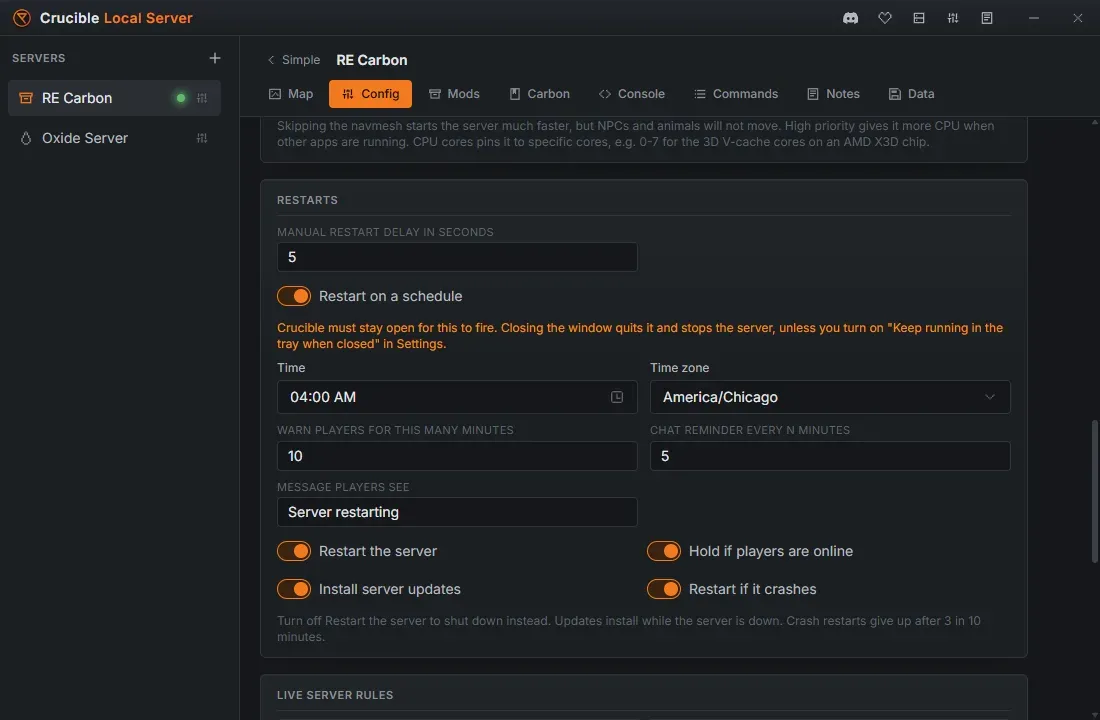
Open the server, click Config in the button row along the bottom of the Quick view, and find Restarts in that tab.
Set a daily restart
Section titled “Set a daily restart”Turn on Restart on a schedule and set:
- Time and Time zone. The restart is a local wall-clock time, so 04:00 stays 04:00 across a daylight-saving change.
- Warn players for this many minutes. How much notice players get before the server goes down.
- Chat reminder every N minutes. Optional extra chat lines on top of the countdown. Leave it at 0 if you only want Rust’s own warning.
- Message players see. The text inside the warning.
Players get Rust’s real restart warning
Section titled “Players get Rust’s real restart warning”The countdown is Rust’s own in-game restart banner, not chat spam. Crucible Local Server hands the restart to the server, and Rust shows the warning on its usual escalating cadence (once a minute, then every 30 seconds under 5 minutes, then every 10 seconds, then every second at the end), kicks everyone, and quits, saving the world on the way out. Crucible then starts it again.
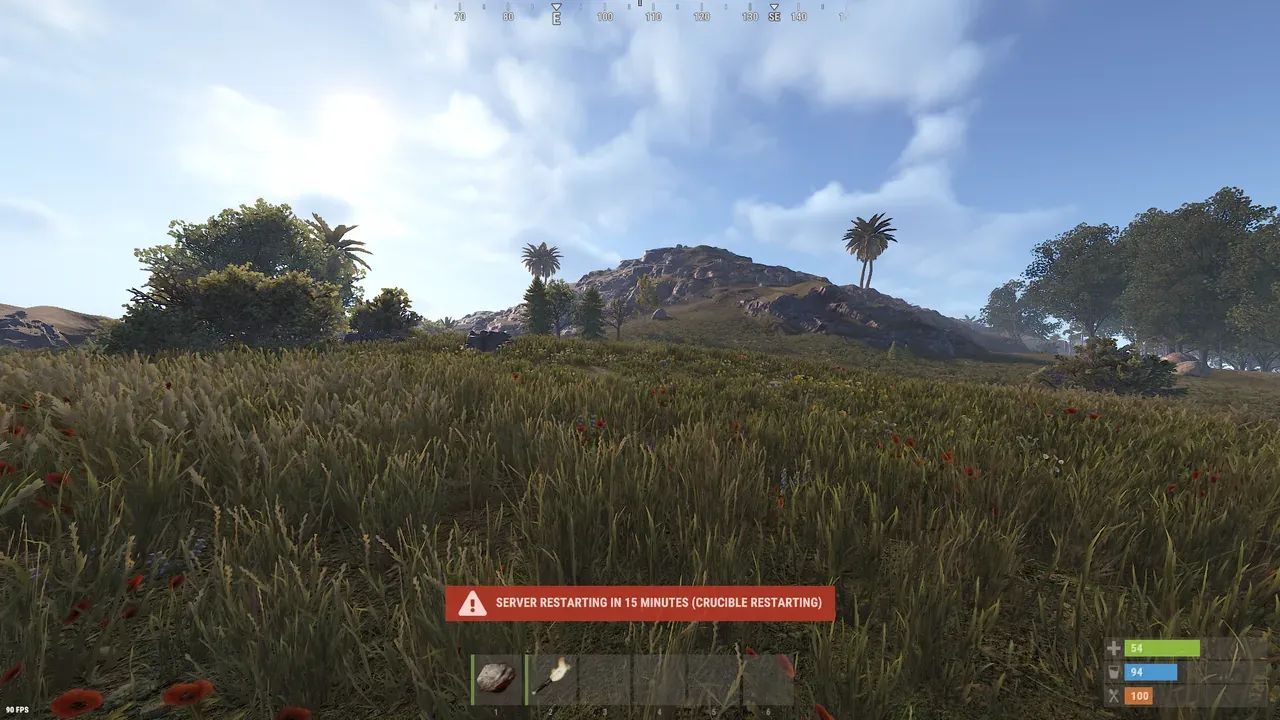
It counts down to the time you actually set. If you set a restart that is sooner than your warning window, players get the time that is really left, not the full warning length.
What the restart does
Section titled “What the restart does”- Restart the server. On by default. Turn it off and the schedule becomes a daily shutdown instead: the server goes down and stays down.
- Install server updates. Checks for a newer Rust build while the server is down and installs it before the server comes back, so players are never version-kicked by an outdated server. On a Carbon or Oxide server, the mod loader is reinstalled after a game update too, since a Rust update breaks the loader until it is rebuilt.
- Hold if players are online. Waits rather than kicking anyone, and takes the restart the moment the server empties.
- Restart if it crashes. Brings the server back if it dies on its own. A server that keeps crashing on startup stops being brought back, so it never gets stuck in a restart loop.
You can cancel the next restart while it is counting down. In the Quick view, the button that normally says Restart becomes Restarting in 5m 03s (or Stopping in 5m 03s if the schedule is set to shut the server down rather than bring it back), counting the time left. It reads out as hours and minutes when the restart is still far off, minutes and seconds under the hour, and plain seconds in the last minute. Click it to call the restart off, and players see a “restart interrupted” message. The schedule stays on for the next day.
Crucible has to stay open
Section titled “Crucible has to stay open”Closing Crucible Local Server stops the server. A scheduled restart can only fire while Crucible is running.
By default, closing the window quits the app. If you want an overnight restart to actually happen, turn on Keep running in the tray when closed in Settings. Crucible then stays in the system tray with the window closed, the server keeps running, and the schedule fires. Quit from the tray icon when you are done, which stops the server cleanly.
Restart it yourself
Section titled “Restart it yourself”You do not need a schedule to restart once. The Quick view has a Restart button while the server is Live: it announces the same native countdown, gracefully stops the server so the world saves, and starts it again. The countdown length is Manual restart delay in seconds at the top of the Restarts section.
Related
Section titled “Related”- Application settings and storage for the tray option.
- Server settings and server.cfg for the rest of the Config tab.
- Wipe, back up, and reuse a world.