
Live 3D preview
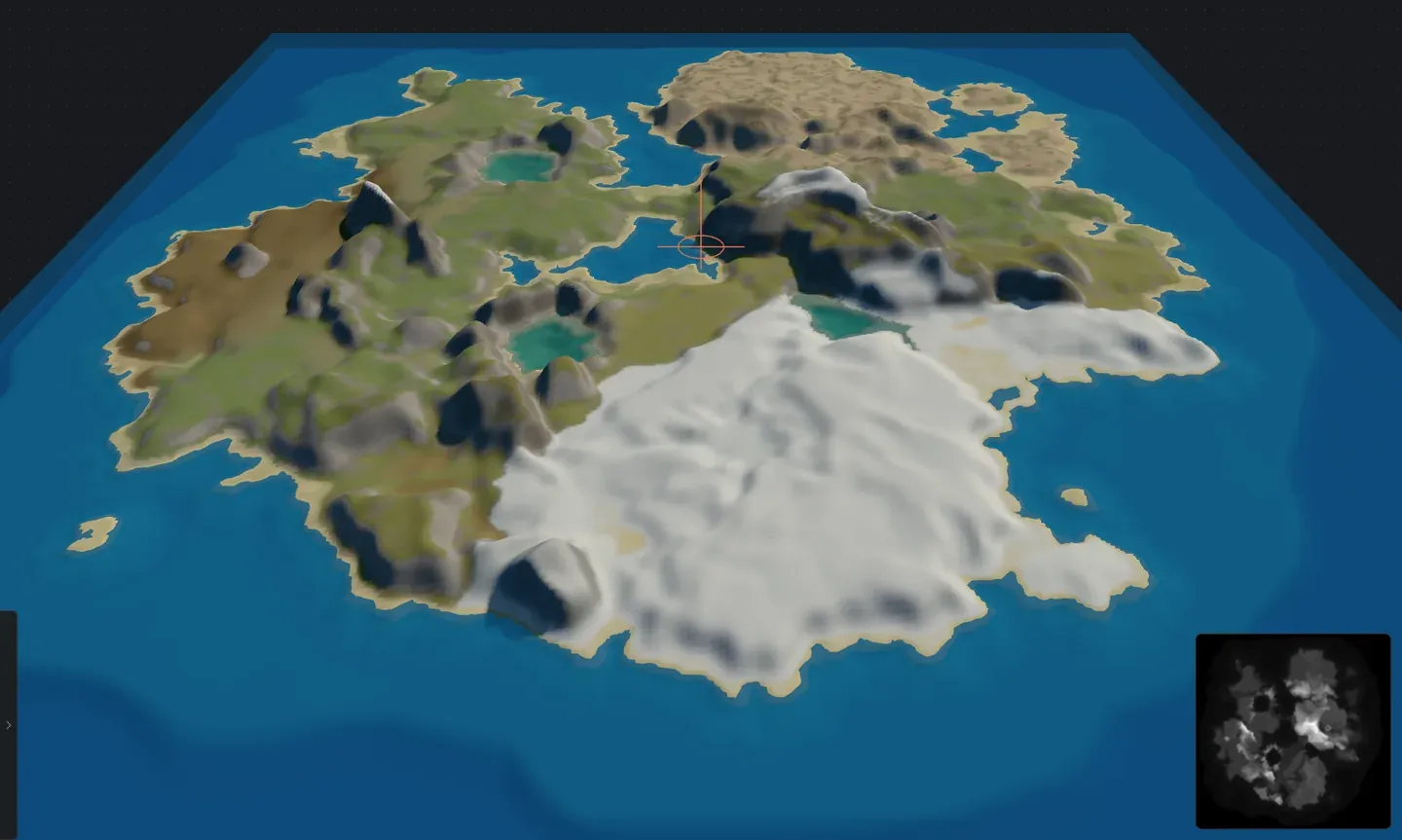
Crucible shows your terrain in a live 3D preview that updates instantly as you adjust sliders or brush the terrain. You read elevation, coastline shape and terrain features as you work, instead of guessing from a flat grayscale image, and see how your map will look before you export it into RustEdit.
What views and overlays are there?
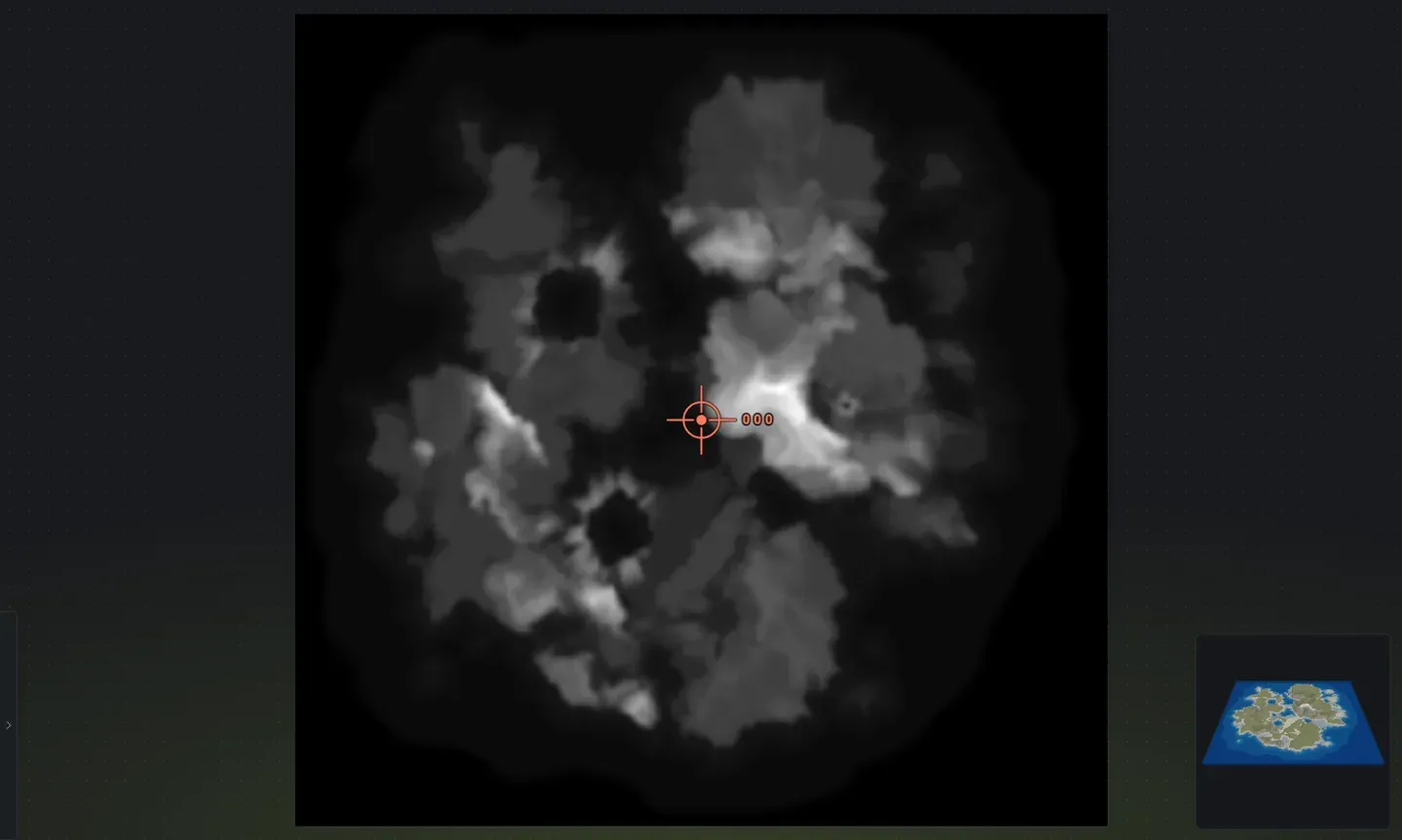
Section titled “What views and overlays are there?”- 3D and 2D: toggle between a shaded 3D view of your terrain (shows how it generally looks in game) and a flat 2D heightmap view (the raw 16-bit grayscale image). Use 3D to evaluate shape and lighting, use 2D to check pixel-precise elevation values.
- In-game view: a third view that renders your island much closer to how it looks in Rust, with real ground textures, water and sky, and a fly camera. See in-game 3D view.
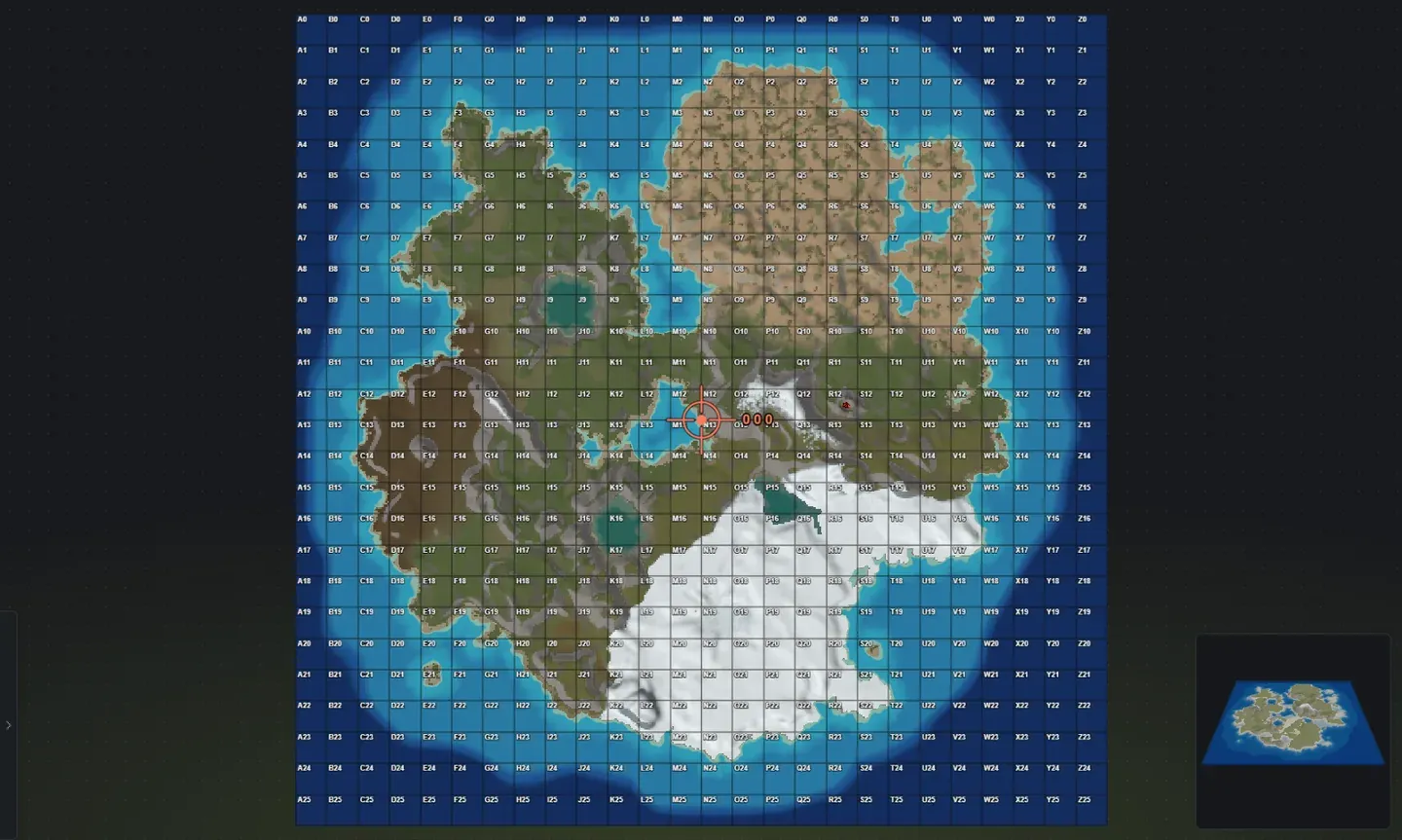
- Color map: the 2D view opens on your map in the same colors as the exported Map PNG, with the in-game map grid and its cell letters drawn on it (A0 in the top-left corner). Press G (or the grid button in the view toolbar) from the 3D or in-game view to jump to the 2D view in color; press it again in 2D to swap to the grayscale heightmap and back. Useful for understanding map scale and planning exactly where terrain features will sit on the in-game map, for example monument placement before RustEdit.
-
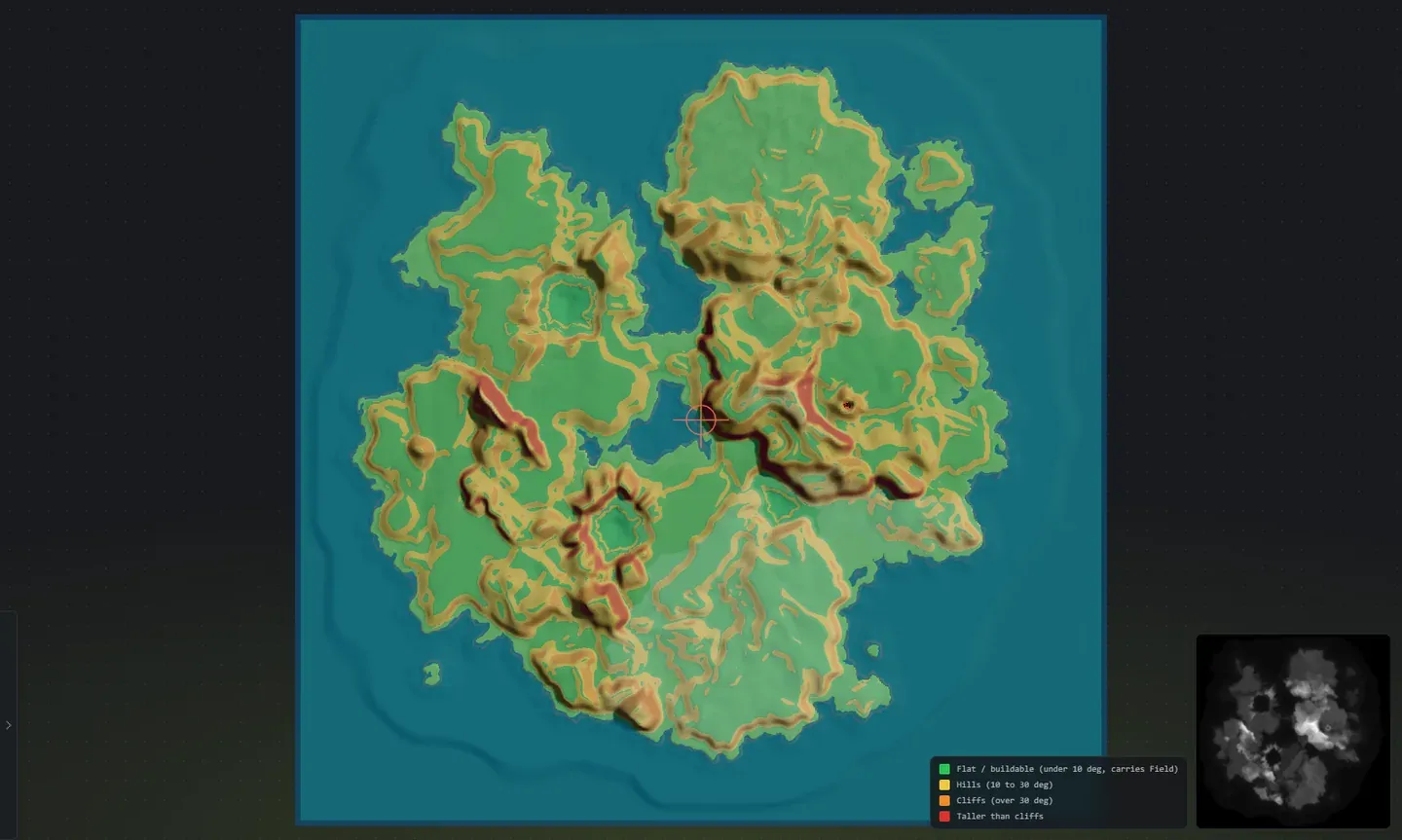
World 0 0 0 marker: a crosshair on the exact centre of the map, which is where Rust does its garbage collection. Raise land there before you export, or that point sits in open water and the map can stutter around it. The marker reads the ground live: it warns while the centre is under water or barely above it, and it disappears once you have covered it, coming back if you lower the centre again. Note that this is the map centre, not the grid A0 corner.
-
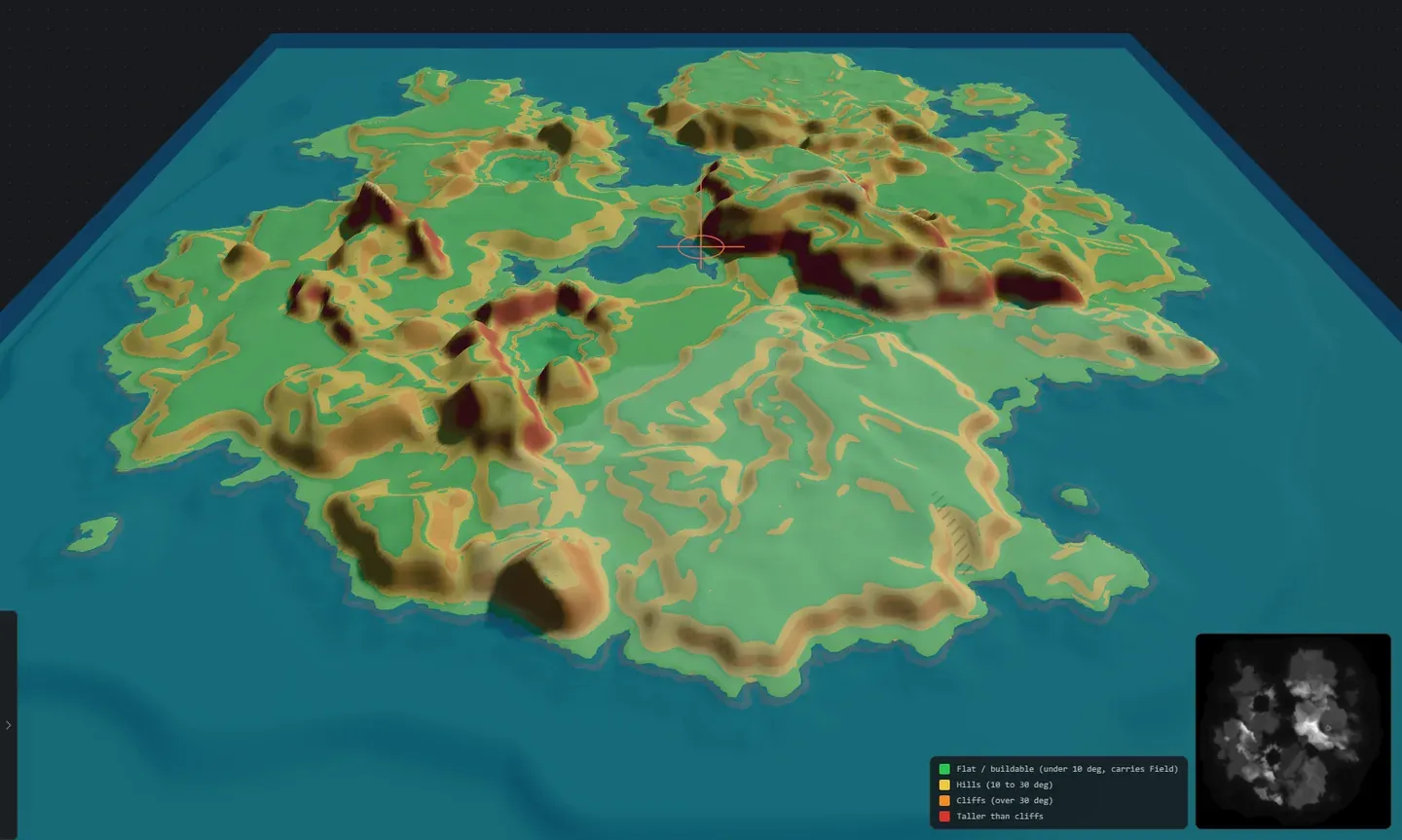
Slope view: color-codes the terrain by how playable it is: green is flat, buildable ground, yellow is hilly terrain, orange marks cliffs, and red marks ground taller than cliffs (too extreme for the game to decorate naturally). A color key beside the minimap labels each band, and the overlay hides itself again when you turn it off. Use it to spot cliffs, verify buildable ground distribution, plan base locations, and catch terrain you may want to soften before building on it.
- Sun and time: change the light angle and sun position to preview how slopes and cliffs will shade in game. Helps you evaluate visual contrast and read the terrain better.
- Minimap: a small floating overview showing your whole map as a secondary view.
- Top-down view: press T to snap the camera straight overhead for a clean, map-wide look (Reset view, R, brings the normal angle back; both rebindable in Settings). Handy for planning layout and reading the whole island at once.
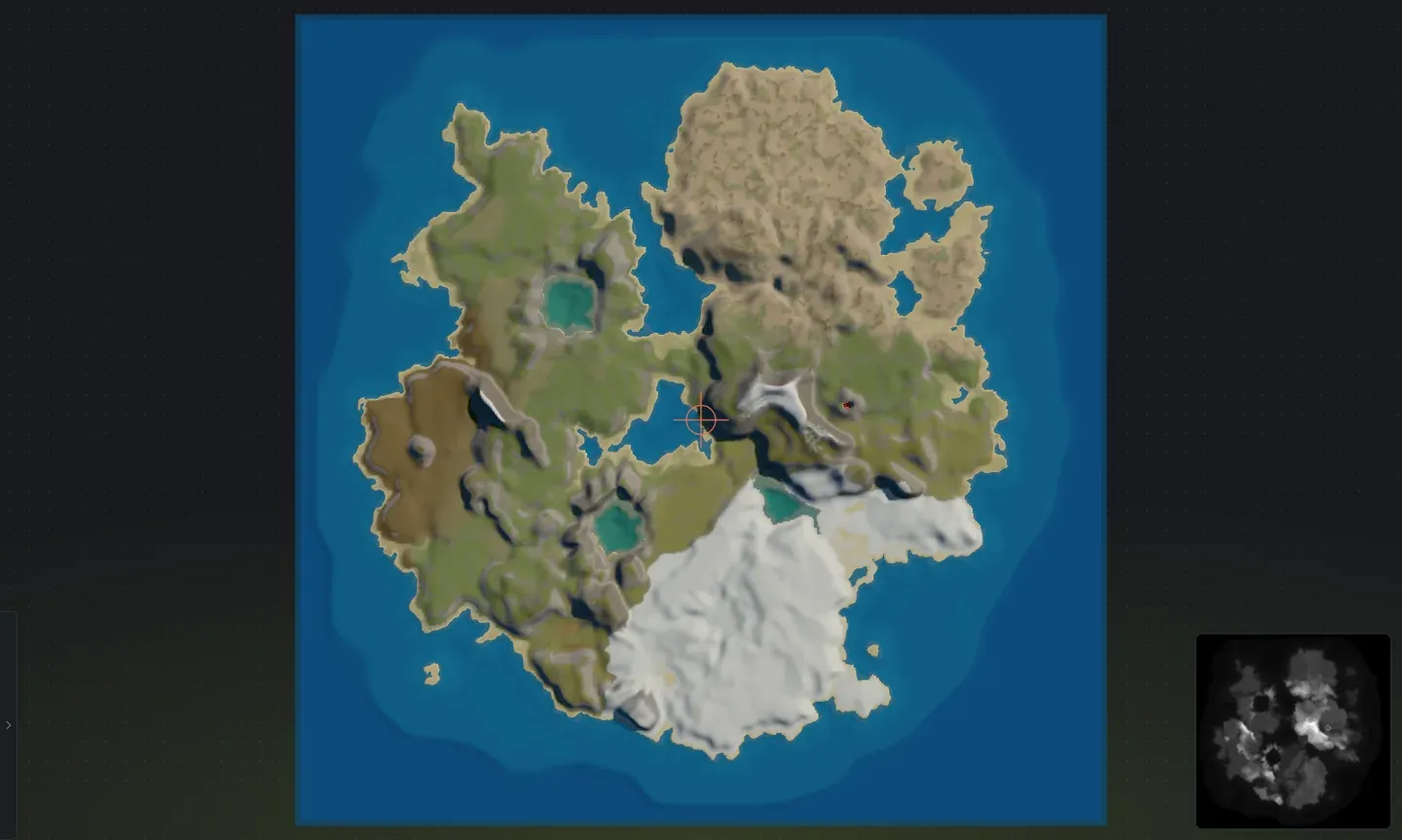
The 3D preview also colors your terrain the way Rust does: grass lowlands, grey rock on the steep cliff faces, snow on the peaks and sand along every shoreline. Each island is tinted by the base surface you choose, and any ground textures you paint show up here live as you work. Turn on Worldgen and the view switches to the real biome-tinted ground, with forest, so the difference between a plain island and a generated one is obvious at a glance.
The preview updates as you move sliders or combine islands, so you shape the map with immediate feedback before you export. See Status bar for info on the indicators shown at the bottom of the workspace.