
The editor at a glance
The editor is one window in five parts, and each part answers a different question: what you can do (the menus), which tool you are in (the rail and the pill in the view), what you are looking at (the viewport), what the thing in front of you is set to (the inspector), and where your pointer is (the status bar).
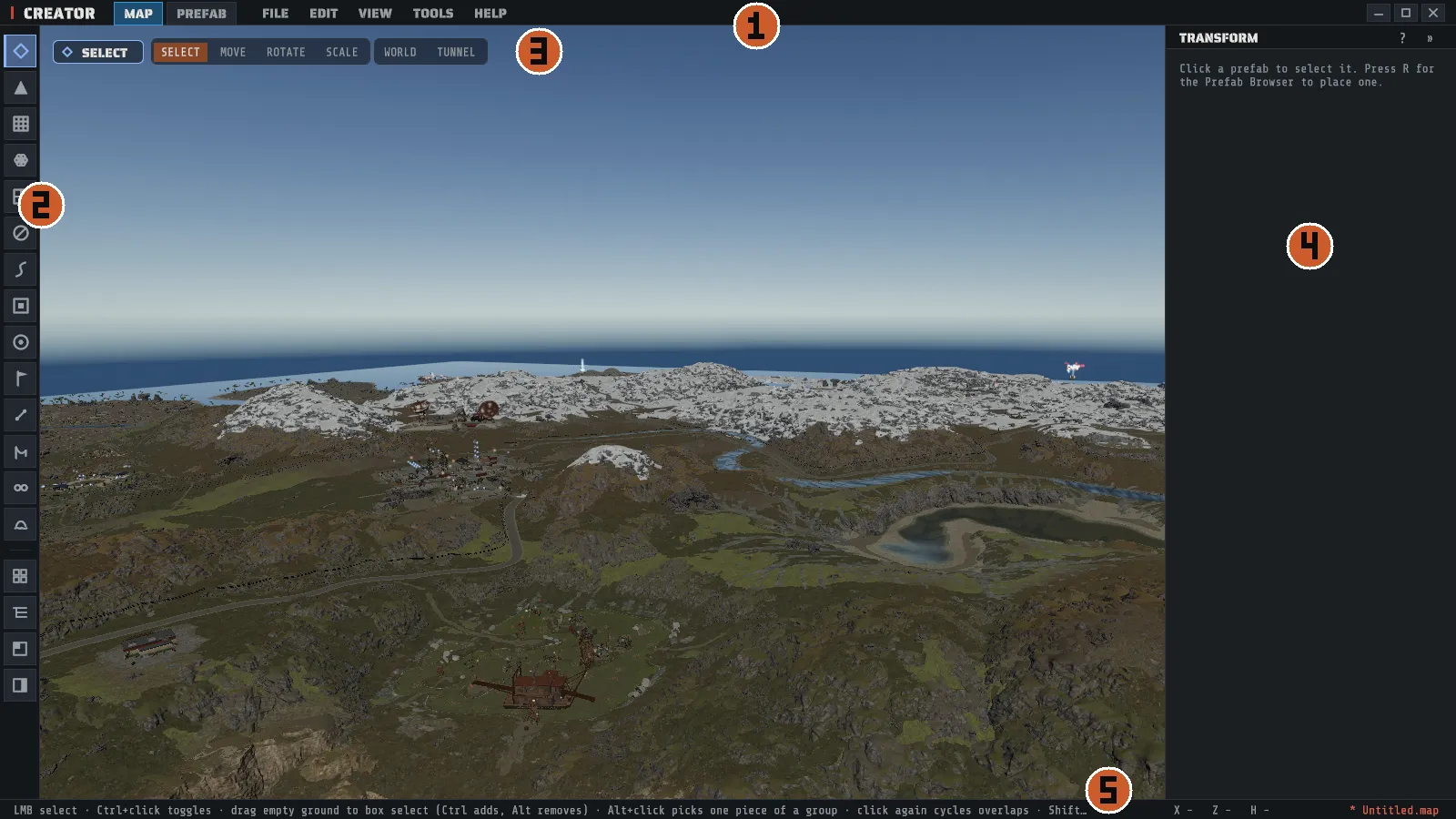
The five regions
Section titled “The five regions”| Region | What it is |
|---|---|
| Menu bar, along the top | The CREATOR mark, the five menus, a frames-per-second readout and the window buttons. |
| Tool rail, down the left | One button per tool, then a divider and four buttons that open the floating windows. The active tool’s button wears that tool’s own accent color. |
| Viewport, the middle | Your map, drawn with Rust’s own assets. A pill in its top left corner names the active tool. |
| Inspector dock, down the right | The active tool’s settings, or the selected prefab’s transform. |
| Status bar, along the bottom | The active tool’s mouse grammar, your pointer’s world position, and the open document with its unsaved dot. |
The inspector follows your selection first and your tool second. Select a prefab in any tool and the dock becomes TRANSFORM for that prefab; with nothing selected it shows whatever the active tool needs. That is why the panel sometimes changes when you have not touched the rail.
The menu bar
Section titled “The menu bar”Beside the Creator wordmark sit the two mode tabs, MAP and PREFAB. The highlighted one is
the document you are editing and the other one switches to it (F4 does the same); a greyed PREFAB tab
names in its tooltip why the workspace cannot open yet. The same frame opens with no map at all when
you start the prefab workspace from the start screen; there the MAP tab takes you back to the start
screen. See Custom prefabs for what is on the other side.
| Menu | What is in it |
|---|---|
| FILE | New Map…, Open Map…, Save Map (Ctrl+S, or Ctrl+Shift+S), Save Map As… (Ctrl+Alt+S), Show Map Folder, unload; the prefab-document entries (New Prefab…, Open Prefab…, Save Prefab, Save Prefab As…, Export Thumbnail, Close Prefab) and the three map round-trip entries (Edit Selection In Workspace, Apply Back To Map, Place On Map); the three imports (CopyPaste JSON, a .raw heightmap, a heightmap stamp); and Quit. |
| EDIT | Undo and redo, which name what they will revert; lock, unlock, hide, unhide; duplicate (Ctrl+D), snap to ground, copy and paste transform; Replace Selection with Browser Prefab (swaps every selected prefab for the one picked in the prefab browser, one undo step) and Remove Duplicates (removes stacked copies at the same spot, in the selection or map-wide); Save Selection as Custom Prefab…; your selection groups; Preferences…. While a map is loading, placing prefabs or generating, the entries that would change it are greyed out and say why. |
| VIEW | The view toggles (camera light, water, the volume overlay, animated effects, no-build zones, underwater haze), Map Overview, Time / Weather…, Performance readout (the frame rate and graphics tier at the right end of the menu bar, off by default), and the three panels. |
| TOOLS | Every tool by name, then Procedural Generation…, Map Tools: Rotate, Resize, Merge…, Profiles (Loot, Vending, NPC)… and the topology cleanup. |
| HELP | Tools & mouse grammar…, Keyboard shortcuts…, Report a bug, Run diagnostics report (F9), Open logs folder, and About Creator with the exact version string to quote in a bug report. |
A menu entry that cannot run right now is a grayed-out row rather than a missing one, and the grayed-out entries in the prefab context menu carry the reason they are unavailable.
Tooltips
Section titled “Tooltips”Rest the pointer on almost anything, a menu or one of its entries, a rail button, a panel heading, a
section heading or a control in the inspector, and a tooltip says what it does in one short sentence.
Anything with a keyboard shortcut ends with Shortcut: and the key it is bound to now. A disabled
control’s tooltip says why it is disabled.
Tooltips appear after a short pause, move straight to the next control while one is showing, stay on screen at the edges, and go away when you move off or click. They never take a click from the viewport.
Every key the app names follows your rebinds. The tooltips, the status bar’s mouse grammar, the
panel hints and the messages all read the current binding, so if you rebind the Prefab Browser to P
in Preferences > KEYBINDS, the empty Transform panel reads “Press P for the Prefab Browser” at once.
The key tables on this site show the defaults.
The tool rail
Section titled “The tool rail”Twelve buttons, top to bottom: Select, Sculpt, then the four paint layers (Splat, Biome, Topology, Alpha), then Paths, Volumes, Spawn Points, Map Markers, IO Wiring and Zipline. Hovering one shows its name, what it does and its current key.
The rail is not quite the same list as the tools. Creator has twelve tools, and the rail splits
painting into its four layers while leaving Move, Rotate and Scale off: those
three follow your selection and are picked with 1, 2 and 3 or from the Tool dropdown in the
transform inspector. See Select and transform.
Below the divider, four buttons open the floating windows.
| Window | Key | What it is for |
|---|---|---|
| Prefab Browser | R | Find, preview and place prefabs, and the custom-prefab library. See Prefabs. |
| Scene Hierarchy | H | Every placed prefab as a searchable list, with ALL / LOCKED / HIDDEN / NEG filters. |
| Map Overview | Tab | The baked top-down map with its layers. See The map overview. |
| Inspector Panel | I | Hides or re-opens the dock on the right. |
The viewport and the tool pill
Section titled “The viewport and the tool pill”The pill in the top left of the view carries the tool’s glyph, its name and its current detail, so
PAINT reads PAINT · Splat: Grass and SCULPT reads SCULPT · Terrace. It is the one place that
answers “which tool am I in”, and it is framed in that tool’s accent, the same color the rail button
and the brush cursor ring use.
Beside the pill is the tool strip: SELECT, MOVE, ROTATE and SCALE switch the transform
tool exactly as S, 1, 2 and 3 do, WORLD or LOCAL says which axes the gizmo follows
(X flips it), and TUNNEL turns the tunnel-grid snap on and off. WORLD, LOCAL and TUNNEL
only show while a tool that moves prefabs is active (and TUNNEL only on the map, not in the prefab
workspace); in the brushes and the other tools the four tool buttons stay, so one click takes you back. See
Select and transform.
While a brush tool is active, the cursor ring on the ground traces the brush’s real shape, with an inner ring at the point where the brush is at half strength. See Sculpting.
The inspector dock
Section titled “The inspector dock”The header names what you are editing: TRANSFORM, SCULPT · Terrace, PAINT · Splat,
PATHS, VOLUMES, SPAWN POINTS, MAP MARKERS, IO WIRING or ZIPLINE. The » in
that header hides the dock; the rail’s Inspector Panel button and VIEW > Inspector Panel
bring it back. Long panels scroll inside the dock. Every collapsible section starts closed; click its
heading to open it, and a section you open or close stays that way the next time you come back.
The status bar
Section titled “The status bar”Three slots, left to right.
| Slot | What it shows |
|---|---|
| Left | The active tool’s mouse grammar in one line (hover it to read the whole line when it does not fit), and Diagnostic report running... while the F9 harness is driving the camera. |
| Center | Your pointer’s position on the terrain as X, Z and H in meters, or a dash when the pointer is off the world or over a panel. |
| Right | The open document’s name, with a * and an accent color while it has unsaved edits. |
Where the mouse grammar lives
Section titled “Where the mouse grammar lives”Every tool has an exact mouse grammar (what the left button does, which modifier does what, what
Esc cancels), and the app keeps its own copy: HELP > Tools & mouse grammar… lists it per tool,
offline, next to HELP > Keyboard shortcuts…. The same two lists are published here as
Tools and mouse grammar and
Keyboard shortcuts, and both pages are generated from the app’s own
tables, so they cannot drift from the build you are running.
Alerts, toasts and dialogs
Section titled “Alerts, toasts and dialogs”An error that needs you appears as a dismissible card under the menu bar on the right, and it stays
there until you dismiss it, even across loading a map. A short confirmation (a save, a preset loaded,
a refused action and its reason) appears as a toast at the bottom of the view and fades. A dialog that
asks a question takes the keyboard while it is up, so a tool letter or Del cannot reach your map
behind it.