
Custom prefabs
A custom prefab is your own collection of Rust prefabs saved as one reusable piece: a guard post, a
bridge, a whole compound. Save a selection once, then place it anywhere, on any map, as a single undo
step. The file Creator writes is the same .prefab RustEdit uses, so packs move between the two tools.
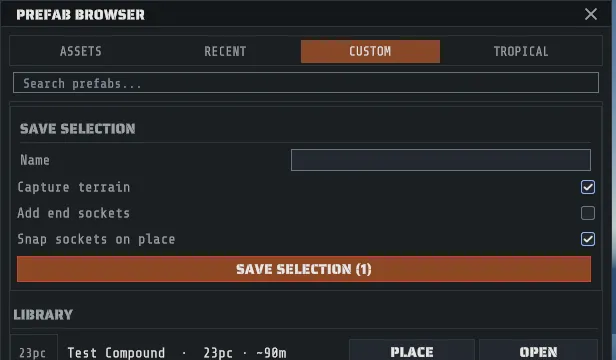
Save a selection
Section titled “Save a selection”- Select the prefabs you want, on the map (see Select and transform).
- Open the Prefab Browser (
R) and go to the CUSTOM tab, or use EDIT > Save Selection as Custom Prefab…, which lands you on the same bar. - Type a name. Leave it blank and you get a dated one.
- Leave Capture terrain on to bake the ground under the selection into the pack, so placing it brings its own height and ground textures with it.
- Turn on Add end sockets if the piece should snap end to end to copies of itself.
- Click SAVE SELECTION, which counts what it is about to save.
Snap sockets on place is the third checkbox, and it is a placement setting rather than a save one: with it on, a pack you place mates onto a compatible free socket nearby instead of dropping loose.
The library
Section titled “The library”The rest of the CUSTOM tab is your library, one card per pack: its thumbnail, its name, its piece count, its footprint in meters when it carries terrain, and its socket and group counts. The search box filters by name. PLACE drops the pack on the map at the camera’s drop point as one undo step, and OPEN opens it in the prefab workspace to edit.
A card with no picture is normal: a pack imported from another editor never had a thumbnail, so the card shows its piece count instead. A card that cannot be read says why, on the card. Creator’s own shipped packs are copied in the first time the library opens and never overwrite one of yours. Where the folder is: Where your files live.
The prefab workspace
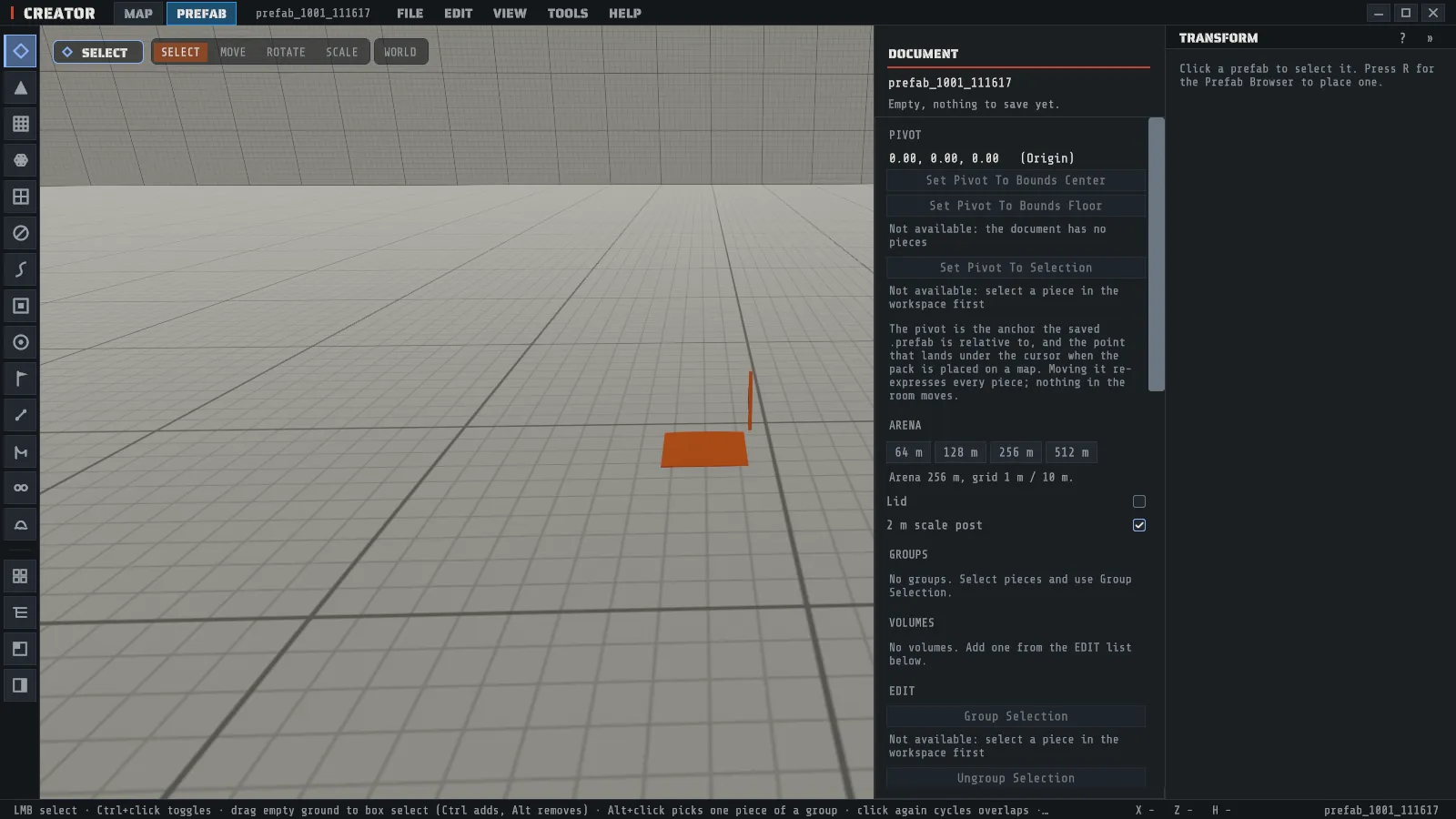
Section titled “The prefab workspace”The workspace is a clean white room for building a pack with no map in the way. It opens four ways: the PREFAB tab in the menu bar, OPEN WORKSPACE on the start screen, FILE > New Prefab… or FILE > Open Prefab…, and OPEN on a library card.
The mode tabs
Section titled “The mode tabs”MAP and PREFAB sit beside the Creator wordmark in the menu bar, and they are always there.
The highlighted one is the document you are editing; clicking the other one switches to it, and F4
does the same from the keyboard. Hovering a tab names the document it will take you to, with a * in
front when that document has unsaved changes. A greyed PREFAB tab tells you why in its tooltip: the
workspace spawns real Rust prefabs, so it needs your synced game content the same way LOAD MAP does,
and it waits for a map that is still placing prefabs to finish.
Switching hides a document, it never unloads one. The map stays exactly as you left it, both documents keep their own unsaved dot, and closing the app asks about both.
With no map open
Section titled “With no map open”Opening the workspace from the start screen (or from a recent-prefab card there) gives you the full
editor with no map behind it: the menu bar with its mode tabs, the tool rail, the prefab browser, the
inspector, undo and redo, and Ctrl+S. The tools that work on a prefab are all there (Select,
Move, Rotate, Scale, Sockets, and Sculpt and Paint for the pack’s own terrain
pad). The tools that edit a map’s own data (Paths, Volumes, Spawn Points, Map Markers, IO Wiring,
Zipline and the Island Stamp) say that no map is open instead of switching.
With no map open, MAP, F4, CLOSE WORKSPACE, FILE > New Map… and FILE > Unload Map all
take you back to the start screen. If the prefab has unsaved changes you are offered SAVE AND LEAVE,
LEAVE UNSAVED or GO BACK. Leaving never throws your work away: the document stays open,
OPEN WORKSPACE shows it again, and closing Creator from the start screen still asks about it.
FILE > Load Map… opens the map as usual, and your prefab document stays open behind the
PREFAB tab.
The document panel
Section titled “The document panel”The DOCUMENT panel is everything about the pack you are building. In the workspace it has its own
column on the right, beside the inspector, so the two are always on screen together: DOCUMENT with
its editing commands, and next to it the panel of the tool you are using (TRANSFORM for a selected
piece, SOCKETS with the Sockets tool). Each column scrolls on its own when the
window is short, and hiding the inspector with I leaves DOCUMENT where it is. On a map there is no
DOCUMENT column and the inspector sits where it always does.
| Block | What it holds |
|---|---|
| Name and save state | The document’s name, and whether it has unsaved changes or has never been saved |
| PIVOT | The pivot’s position and how it was chosen, with the three one-click choices below it |
| ARENA | The room: a 64 m, 128 m, 256 m or 512 m side, a Lid, and a 2 m scale post for reference |
| GROUPS | Each persisted group in the pack with its member count |
| VOLUMES | The app-only volumes the pack carries, by kind |
| EDIT | Every editing command, live or greyed with its reason |
| FILES | The files this pack is, and SAVE PREFAB, SAVE AS, EXPORT THUMBNAIL, PLACE ON MAP and APPLY BACK |
The prefab browser works exactly as it does on a map, so you build by placing real Rust prefabs into the room. CLOSE WORKSPACE at the foot of the panel leaves the workspace: back to the map when one is open, and back to the start screen when none is (see With no map open).
The FILE menu
Section titled “The FILE menu”FILE carries the prefab document’s own block, separate from the map’s so you never have to work
out which file a save touched: New Prefab…, Open Prefab…, Save Prefab, Save Prefab As…,
Export Thumbnail and Close Prefab, then Edit Selection In Workspace, Apply Back To Map
and Place On Map. Ctrl+S saves whichever document is active, and the mode tabs say which that is.
Closing a prefab with unsaved changes asks first, and SAVE there saves the prefab.
The pivot is the pack’s origin
Section titled “The pivot is the pack’s origin”Every piece in a pack is stored relative to one point, the pivot, and that point is where the pack lands when someone places it. Moving the pivot moves nothing in the world: it re-expresses every piece around the new origin, which is what keeps the file compatible with RustEdit both ways. Set Pivot To Bounds Center, Set Pivot To Bounds Floor and Set Pivot To Selection are the three one-click choices in the panel’s PIVOT block, and the floor is usually what you want for something that stands on the ground.
The editing commands
Section titled “The editing commands”All of these are on the document panel and on the right-click menu over a piece, which render one list rather than two. Each one that changes the pack is a single undo step, and one that cannot run right now shows you the reason instead of doing nothing. The ones that change the room rather than the pack (the grid snap, the orbit view, the terrain pad and the proxy outlines) are not undo steps, the same way the arena’s own size is not.
| Command | What it does |
|---|---|
| Set Pivot To Bounds Center / Bounds Floor / Selection | The three pivot choices, on the PIVOT block |
| Group Selection / Ungroup Selection | Persisted groups inside the pack, one level deep |
| Array 5 x 10 m along X | Copies the selection along an axis at a fixed step |
| Repeat 5 along the exit socket | Chains copies socket to socket, the same mate a drag makes, so the chain is indistinguishable from one assembled by hand |
| Align Min on X | Lines the selection up on one axis |
| Distribute on X | Spaces three or more pieces evenly between their own extremes |
| Mirror across X | Reflects the selection |
| Snap Selection To Grid, Toggle Grid Snap, Grid Cell 1 m / 10 m | The room’s own 1 meter and 10 meter grid |
| Orbit Camera About Pivot | Swaps the fly camera for an orbit around the pivot |
| Add Terrain Pad (fit to the pack), Level The Terrain Pad, Remove Terrain Pad | Real terrain inside the room, sized to the pack, so you can sculpt and paint the ground that ships with it |
| Add Prevent-Building Volume, Delete Selected Volume | The app-only volumes a pack carries with it, and takes with it every time it is placed |
| Toggle Volume Proxies | Turns the volume outlines on and off: the pack’s own volumes, and any volume prefab standing in the room. It flips VIEW > Volume Overlay and VIEW > No-Build Zones together (both start off) |
The numbers in those labels are today’s defaults, named out loud so a click is never a surprise.
Mirror has one honest limit. A reflection is not a rotation, so Creator mirrors a piece by negating one scale axis, which it cannot do to a piece carrying sockets (a socket mate solves a rotation, and a mirrored socket would sit at a pose nothing can reproduce). Those pieces get a rotated copy instead and the result line says how many of each you got.
Editing part of a map in the workspace
Section titled “Editing part of a map in the workspace”- Select prefabs on the map and choose Edit Selection In Workspace. They are captured into a new document, pivoted at their own center, and the map is untouched.
- Build. Every edit lands on the document’s history, not the map’s.
- Finish with Apply Back To Map, which deletes the originals and puts what you built where they were as one undo step, or with Place On Map, which drops the document at the camera’s drop point and leaves the originals alone.
Placing a pack as a monument in a generation
Section titled “Placing a pack as a monument in a generation”A pack in your library can also be placed by procedural generation, as a monument of its own. In Creator Mode, open the Procedural Generation panel’s MONUMENTS section, choose the pack under Custom, press ADD PACK and set its rules: how many, which biomes, how far from any other monument, the steepest ground, dry land only, and whether it stands beside a road (on by default; with no roadside spot it is placed clear of roads instead). The generation places it where a monument goes, sets the pack’s saved ground into the map and blends it into the land around it, and the rest of the generation keeps clear of it. A generated placement takes the map’s natural ground (grass, sand, snow) under the pack, while a pack you place by hand keeps every ground texture you painted. The details are in Custom monuments.
On a plain server every ordinary prefab in the pack appears, and the pack’s name shows on the in-game map at its center. Building blocks, wiring, loot, NPC spawners and volumes in the pack need the Creator server extension, as they do for any placed custom prefab. The map’s recipe remembers the pack by name and by a fingerprint of its files, so a later generation places the same pack and tells you if you have changed it since.
Sockets
Section titled “Sockets”Sockets are the connection points that let pieces snap together. Creator reads them out of the game’s own data wherever the game has them: the underwater lab modules, the train tunnels and the coastal cliff decor. The cave kits carry no socket in the game at all, so Creator works theirs out from each piece’s own collision shell instead, and a cave chain comes out flush. Dragging a piece with a socket looks for a compatible free socket within the snap radius (8 meters by default) and mates onto it; two sockets count as joined when they are within 10 centimeters, which is the number the game uses. Snap Rotation, on by default, turns the piece to face its partner. Move Individually, off by default, decides whether a drag takes the whole connected chain (off) or the one piece and breaks its links (on). Links are saved with the pack by socket name, so a pack comes back joined the way you left it.
Sixteen bunker rooms are in the catalog with no sockets at all, and that is not an oversight: nothing in the game’s data says where their doorways are, so Creator does not guess.
The files a pack is, and moving packs between editors
Section titled “The files a pack is, and moving packs between editors”Saving a pack writes up to three files side by side: the .prefab, a companion file holding what that
format has no room for (the pivot, groups, volumes, socket links, the terrain slice), and a .png
thumbnail for the library card.
The .prefab is the interoperable half. Creator reads RustEdit’s packs, including the fields it
does not itself model, and writes those back out unchanged rather than dropping them, so a pack that
goes Creator to RustEdit and back is still the pack you started with. Take the companion file with the
.prefab when you move a pack, the same way you take a map’s sidecar with the map.