
Notes for every server
Every Rust admin ends up with the same scattered mess: a wipe checklist in a text file, a plugin bug in a chat message, the one seed that made a good map lost in scrollback. The Notes tab gives each server its own notebook, right next to the server it belongs to.
Pages are written in markdown as you type it, saved as plain .md files on your PC, and kept even if you uninstall the app.
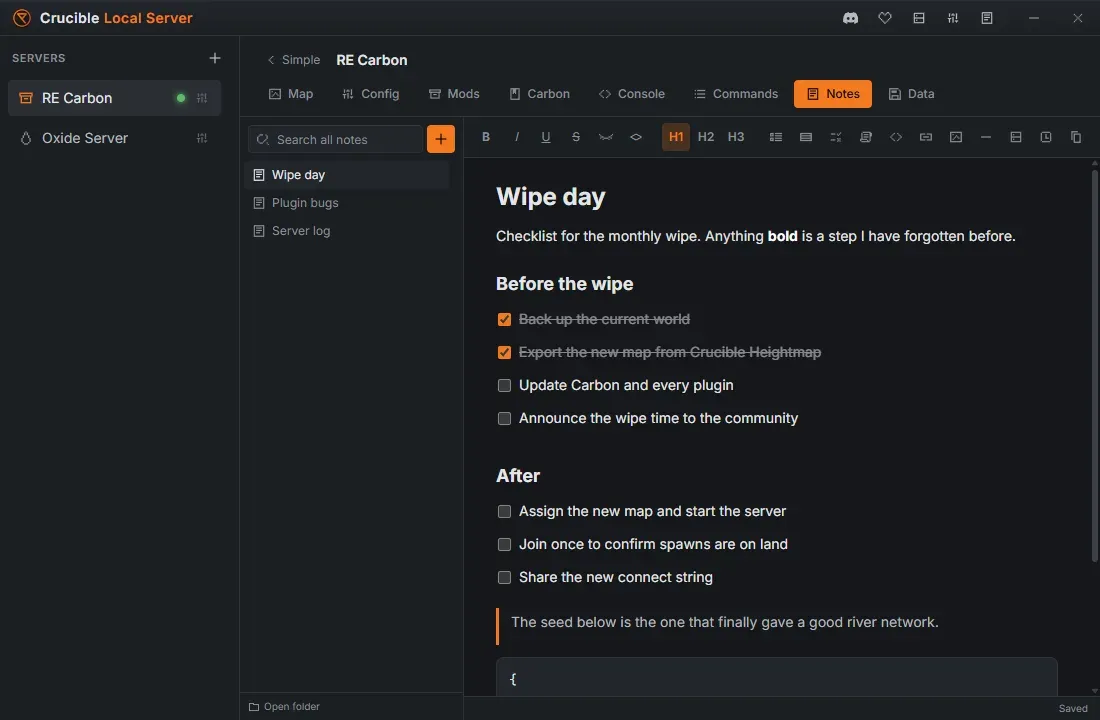
Open the Notes tab
Section titled “Open the Notes tab”From a server’s Quick view, click Notes in the button row along the bottom. If you are already in another tab, Notes is in the tab strip across the top. Simple, at the top left, takes you back to the Quick view.
Each server has its own notebook. Nothing you write on one server shows up on another, except in search, which deliberately looks everywhere.
Write a page
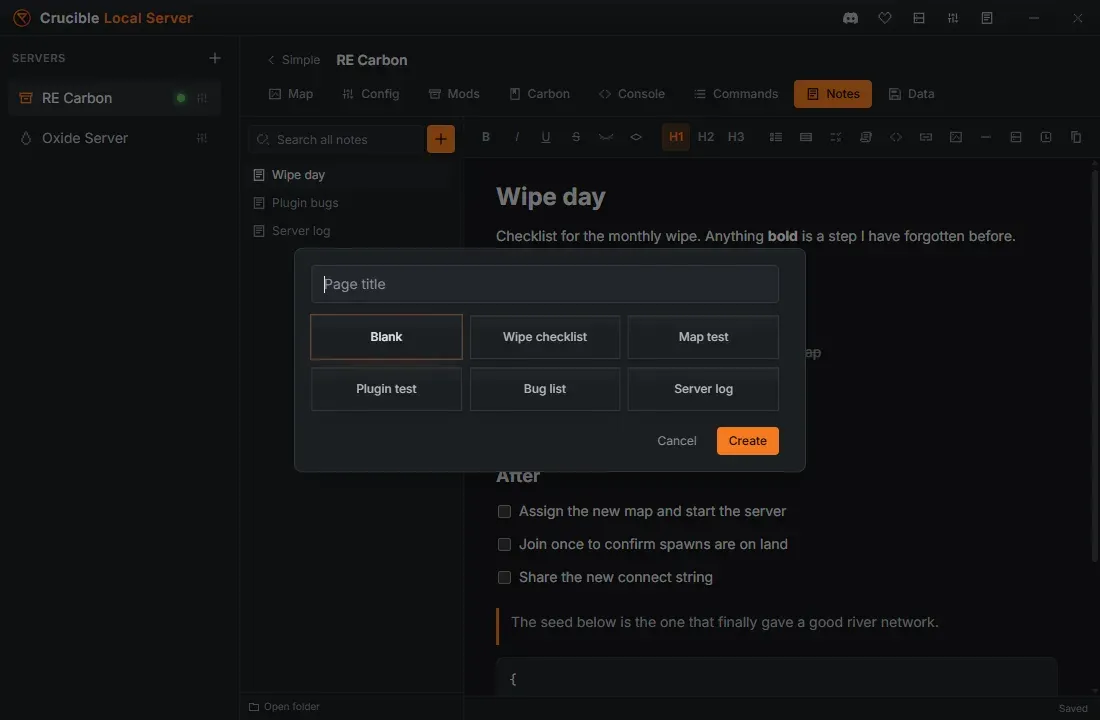
Section titled “Write a page”Click + in the page list to start a page. Give it a title, and pick a starter:
| Template | What you get |
|---|---|
| Blank | An empty page |
| Wipe checklist | Before / wipe / after steps, ready to tick |
| Map test | What to check on a new map, plus a findings section |
| Plugin test | Plugin, version, stack, config block, behaviour checks |
| Bug list | A running list of what is broken |
| Server log | The page the app appends wipes and backups to |
Every template is just markdown, so edit it however you like once it lands.
Formatting
Section titled “Formatting”Type markdown and it formats as you go. The dialect is the one you already use in chat, so there is nothing new to learn:
| Type this | You get |
|---|---|
**bold** | bold |
*italic* | italic |
__underline__ | underlined text |
~~strike~~ | |
`code` | code |
||spoiler|| | hidden until you click it |
# Heading | a heading (## and ### too) |
- item | a bullet list |
1. item | a numbered list |
- [ ] task | a checkbox you can tick |
> quote | a quote |
```json | a code block, colour-coded |
[[Page name]] | a link to another page of this server |
The toolbar above the page does the same thing if you would rather click, and it also carries three shortcuts of its own: insert a server snapshot, insert a timestamp, and copy the page as markdown.
Checklists that stick
Section titled “Checklists that stick”- [ ] becomes a real checkbox. Ticking it writes the tick back to the file, so a wipe checklist keeps its state between sessions, and between wipes.
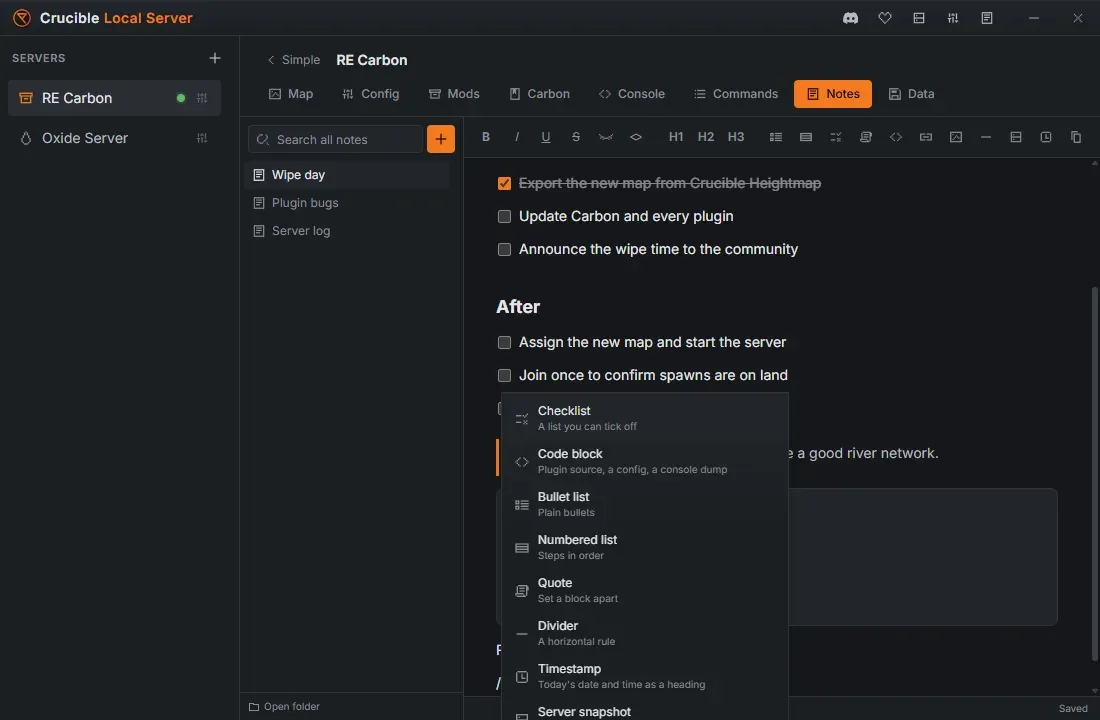
The slash menu
Section titled “The slash menu”Type / at the start of an empty line to insert a block without leaving the keyboard: a checklist, a code block, a bullet list, a numbered list, a quote, a divider, a timestamp, or a server snapshot.
Screenshots
Section titled “Screenshots”Paste an image straight into a page with Ctrl+V and it is stored beside your notes, in an assets folder, and shown inline. The page keeps a normal markdown image link, so the file still opens correctly in any other markdown editor.
Insert a server snapshot
Section titled “Insert a server snapshot”The snapshot button drops in a block recording the server exactly as it is right now: its map, seed, world size, branch, mod stack and max players.
This is the detail nobody writes down and everybody wants later. Weeks after a test, a note that says “the terrain broke here” is useless on its own; the same note with the map and seed beside it tells you which map broke.
The automatic server log
Section titled “The automatic server log”Crucible Local Server keeps a Server log page for each server by itself. It adds a dated line whenever you:
- wipe the map, blueprints, or everything
- restore a backup
- change the assigned map
- change the branch or the mod stack
It only ever appends, so nothing you write there is overwritten. Turn it off in Settings if you would rather keep the log yourself.
Search every note at once
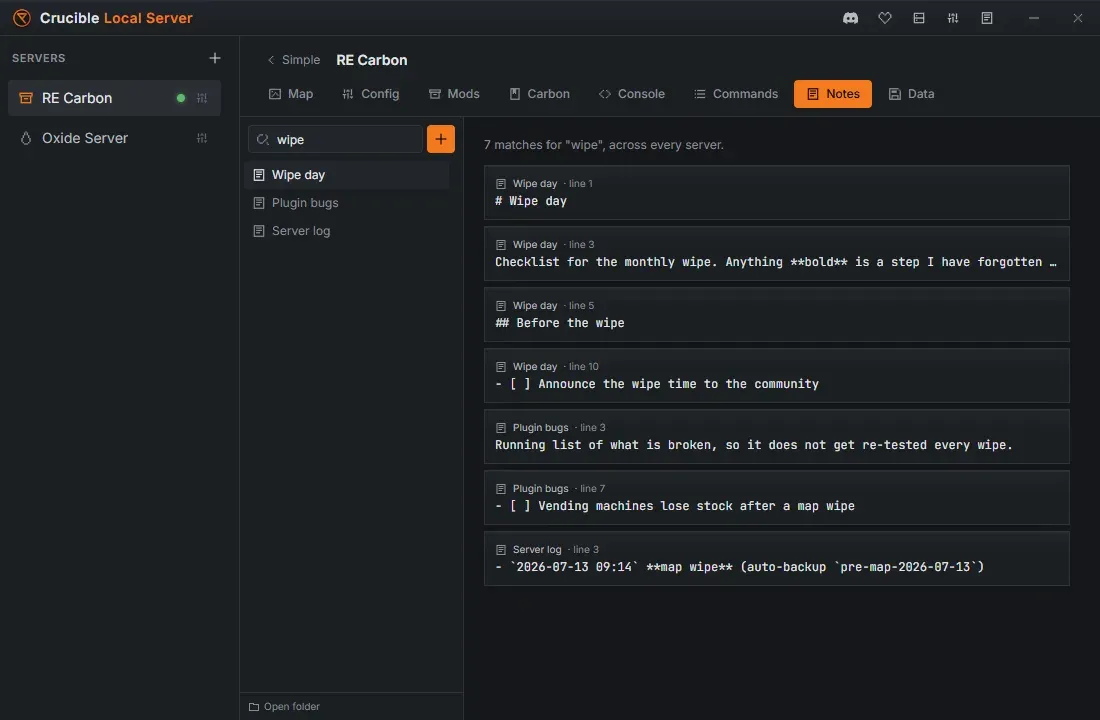
Section titled “Search every note at once”The search box above the page list searches every page of every server, not just the one you are looking at. Results show the page, the line, and which server it came from, and clicking one jumps straight there, switching servers if it has to.
Copy a page into chat
Section titled “Copy a page into chat”Copy as markdown copies the page ready to paste into a chat client. It also fixes up the parts that would otherwise paste as nonsense: tables become code blocks, checkboxes become ☐ and ☑ glyphs, and local images become a [image: name] line, since a file on your PC cannot render on someone else’s screen.
Chat clients cap a message at 2000 characters, so a long page is split into numbered parts.
Where your notes are kept
Section titled “Where your notes are kept”Notes are plain .md files, one folder per server, stored outside the app’s own folder:
<Crucible install>\notes\<server name>\ wipe-day.md plugin-bugs.md server-log.md assets\That location is deliberate. It means your notes:
- survive an uninstall. Removing Crucible Local Server, or the whole Crucible launcher, leaves your notes where they are. If you want them gone as well, there is a separate tick for that when you uninstall, and it is off by default.
- survive an update. Updates replace the app, never your pages.
- open anywhere. They are ordinary markdown. Any editor can read them, and any backup tool can copy them.
Use Open folder at the bottom of the page list to jump straight there.
Deleting a page asks first, and then really deletes it, so read the confirmation. Deleting a server never deletes its notes: they are kept, and if you recreate a server with the same name they come back with it.