
Validate your map
The Map Validator scans the whole map and lists its likely problems, numbered and most severe first: what is wrong, which prefab, and where. It judges each prefab by its real shape against the ground, never by its pivot point, and prefabs that touch hold each other up, so a stack of rocks that reaches the ground is not “floating”. Run it before you put a map on a server.
Open it from TOOLS > Validate Map…. It is a window you can drag by its title bar and resize from its bottom-right corner; it opens where you left it, its ? opens this page, and the camera, the selection and the other panels keep working while it is open.
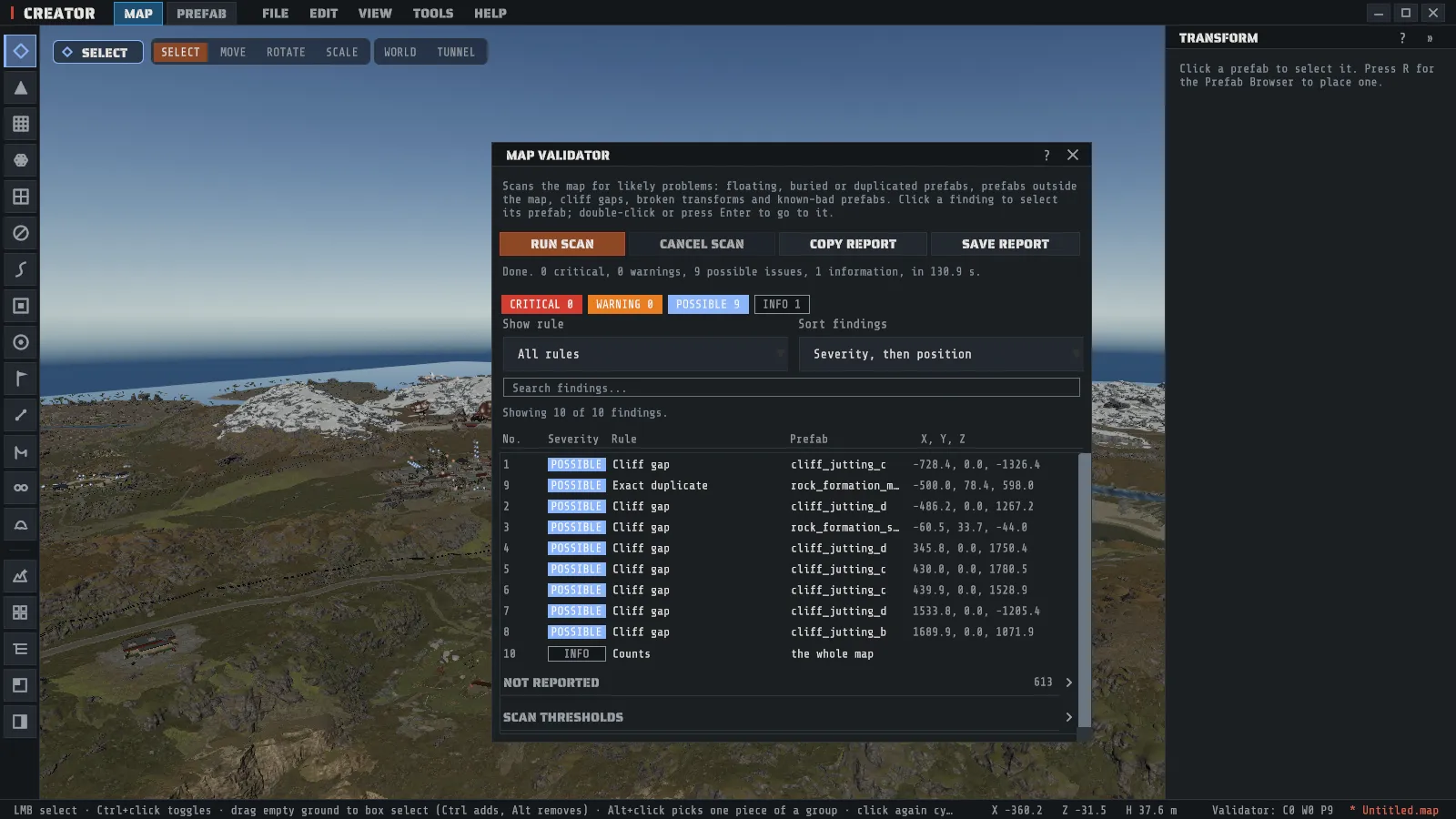
Run a scan
Section titled “Run a scan”- Open TOOLS > Validate Map….
- Press RUN SCAN. The bar shows how far the scan has got; a large map takes a while. CANCEL SCAN stops it, and the list keeps what it found so far, marked canceled.
- Read the list. Its columns are No., Severity, Rule, Prefab and X, Y, Z: each line has its number, a severity, the rule, the prefab’s name and where it is. Hover a line for what to do about it and the prefab’s path.
- Click a line to select its prefab. Double-click it, or press Enter, to select it and move the camera to it, the way F frames a selection.
A line about the whole map (the world origin, the totals) has no prefab to select; double-clicking it moves the camera to the spot. A prefab that is in the map file but that Creator could not place cannot be selected either, and its line says so.
The status bar shows the last scan on its right, beside the map’s name, as Validator: C1 W2 P3: critical findings, warnings and possible issues. Click it to open the window. If you edit the map after a scan, the window says the map has changed and the status bar adds stale, until you press RUN SCAN again.
Filter, sort and search
Section titled “Filter, sort and search”- The four chips CRITICAL, WARNING, POSSIBLE and INFO show how many of each the scan found. Click one to hide or show that severity.
- Show rule shows one rule’s findings only. It and Sort findings sit side by side.
- Sort findings orders the list by Severity, then position (most severe first, then west to east) or by Rule.
- The search box finds a line by the prefab’s name or path, the rule, or the message.
The list shows the first 400 lines that pass the filters. Narrow them to see the rest.
The severities
Section titled “The severities”| Severity | What it means |
|---|---|
| Critical | The map will misbehave on a server, or in players’ games. Fix it before you ship the map. |
| Warning | Very likely a mistake. Look at every one. |
| Possible issue | Worth a look. The scan cannot tell whether it is on purpose. |
| Information | A fact about the scan, such as how many prefabs it read. Nothing to do. |
Rust’s own placement puts nothing floating or outside the map, so a plain generated map (Rust’s own generation, untouched) should read no critical finding and no warning. It can still show possible issues, because the game itself buries some rocks and leaves small gaps under some cliffs.
The rules
Section titled “The rules”| Rule | Severity | What it means | What to do |
|---|---|---|---|
| 1. Invalid transform | Critical | The prefab’s position, rotation or scale is not a number, a scale is zero or negative, or the rotation is not a real rotation. | Type a valid transform in the inspector, or delete the prefab and place it again. A negative scale breaks its colliders in the game. |
| 2. Origin under terrain | Warning or Possible issue | The world origin (0, 0, 0) is above the ground or in open water (Warning), or the ground over it is less than 25 m above it (Possible issue). One line for the whole map. The game itself puts no rule on this; 25 m is the custom-map convention, because some plugins send players and entities to (0, 0, 0). | Raise the ground at the center of the map. VIEW > Origin (0,0,0) shows the spot and the depth. |
| 3. Outside the map | Warning | The whole prefab is outside the map square. | Move it inside, or delete it. |
| 4. Floating | Warning | No part of the prefab is within 0.5 m of the ground, and nothing it touches reaches the ground or the water. A group of touching prefabs is one line, on its lowest prefab, naming how many are in the group. | EDIT > Snap to Ground, lower it, or give it something to stand on. |
| 7. Cliff gap | Warning or Possible issue | The bottom edge of a cliff stands more than 0.75 m above the ground: a Warning when more than 15 % of the edge does, a Possible issue for less. A stray point or two is not reported. | Lower or tilt the cliff, or raise the ground under the gap. |
| 8. Protrudes from underground | Possible issue | A cave, tunnel or bunker piece sticks out of the ground by more than 0.5 m, more than that piece allows. | Lower the piece, or raise the ground over it. |
| 9. Exact duplicate | Possible issue | Two copies of one prefab sit at the same position, rotation and scale. The later one is reported. | EDIT > Remove Duplicates, or delete the later copy. |
| 10. Buried | Possible issue | Every part of the prefab is more than 2 m under the ground, so nobody can see it. | Raise it or delete it. Rust buries some rocks on purpose. |
| 11. Counts | Information | The totals: how many prefabs the scan read, how many groups, and what it could and could not measure. | Nothing. |
| 12. Known-bad prefab | Critical | The prefab is on Creator’s known-bad list: one the game removed (a server fails to load the map) or a broken effect that throws errors in players’ games. The line says which. | Delete it, or put the current prefab in its place. Nothing is removed for you. |
There is no line for rules 5 and 6: they are how Floating decides. Prefabs that touch hold each other up (5), and prefabs made to sit in water, such as icebergs, buoys and boats, are held up by the water (6).
Exceptions, and “Not reported”
Section titled “Exceptions, and “Not reported””Some prefabs are built to break a rule: an iceberg floats, an oil rig stands outside the map, a tunnel piece sits underground, and a volume or a spawner has no shape at all. Each of these belongs to a class in Creator’s class table, and a class excuses the rules that do not apply to it:
| Class | Excused from |
|---|---|
| OFF-MAP (oil rigs, the underwater labs, the Deep Sea) | Outside the map |
| WATER (icebergs, ice sheets, buoys, boats, coastal rocks seated at the water) | Floating, while it reaches the water |
| CLIFF (cliffs) | Judged by the cliff gap rule |
| UNDERGROUND (caves, tunnels, bunker interiors, sewers) | Buried, and judged by the protrudes rule with the piece’s own allowance |
| FLOATS-BY-DESIGN (volumes, triggers, spawners, decals, lights, effects) | Floating and buried, and they never hold anything up |
| SELF-SUPPORTING (a few bridges and the Deep Sea island art) | Counts as standing |
Excused findings are not in the list. The Not reported section at the foot of the list counts them by rule and class and names the prefabs they came from, so a prefab put in the wrong class is easy to spot.
Scan thresholds, below it, shows every number the scan judges by, in plain words, read-only (a switch reads yes or no). Hover one for what it means and the setting’s own name. If you think a prefab is excused by the wrong class, report it with COPY REPORT.
The known-bad review when you save
Section titled “The known-bad review when you save”When you save with Ctrl+S, FILE > Save Map or FILE > Save Map As, Creator first checks the map for prefabs on the known-bad list. If it finds one, it asks before saving:
- REVIEW opens the Map Validator on just those prefabs, so you can go to each one.
- SAVE ANYWAY saves the map as it is.
- GO BACK does not save now.
Nothing is ever removed for you. The check reads your last scan when the map has not changed since, and otherwise runs a quick check of the known-bad list alone. The save Creator offers when you quit with unsaved changes, the autosave and the crash copy never stop to ask.
The Prefab Browser shows a known-bad prefab’s name in red. Hover it for the reason. You can still place it.
Save or copy the report
Section titled “Save or copy the report”COPY REPORT puts the whole report on the clipboard as text: every finding, numbered, then what was not
reported and why. SAVE REPORT writes two files, <map>.validation.txt to read and
<map>.validation.json for a tool, into a folder you choose; the dialog starts in
Desktop\RustCreatorDiag\validate\. A report names the map by its file name only, never the folders it is in,
so you can attach it to a bug report.
Ask your AI client
Section titled “Ask your AI client”If you have connected an AI client (Claude Desktop or
Claude Code), it can run the same scan with the validate_map tool and go
through the findings with you. It takes severity_floor (critical, warning, possible or
information, and warning when you say nothing), limit (how many findings to return, 200 when you say
nothing) and rule (one rule, by its number or its name). It changes nothing, so it needs no click, and it
says why when it cannot scan, such as while a map is loading or generating. The findings it gets are the ones
the window shows, and they land in the window too.