
Sync your Rust content
Creator renders your map with Rust’s own models, textures, shaders and monuments, read out of your Steam copy of the game. The first thing you do after installing is give it that content: it copies what it needs into a private snapshot and works from the snapshot afterwards. This is a large one-time copy, around 50 GB, and everything that draws the game’s art waits on it.
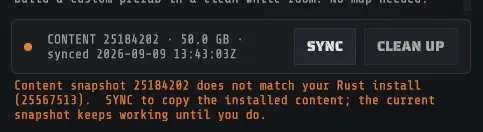
Sync it
Section titled “Sync it”- On the start screen, set RUST INSTALL to your Rust install. DETECT finds it for you.
- Check the path ends at the client bundles. It looks like
C:\Program Files (x86)\Steam\steamapps\common\Rust\Bundles\Bundles. - Press SYNC. Creator copies what it needs into
%LOCALAPPDATA%\RustCreator\content\<buildid>\. - Wait for it to finish. The line under SYNC says what it is doing and how much is left, in gigabytes and in files. When it is done the start screen says the game content is ready, and GENERATE WORLD, LOAD MAP and PREFAB WORKSPACE stop being gated.
The same controls live under Preferences > CONTENT once you are in the editor.
The copy runs at Windows’ background disk priority, which lets your other apps go first, so you can keep using the PC while it runs. It can take longer when the machine is busy; the progress line keeps moving, so you can tell slow from stuck.
From the command line
Section titled “From the command line”RustCreator.exe -synccontent runs the same copy with no clicks. Its window shows the phase, a
progress bar and the same line of gigabytes and files left, and Player.log gets that line every
5 %. Leave the window open: closing it stops the copy, and the next start removes the partial copy.
It exits with code 0 when the copy is done.
When Steam is updating Rust
Section titled “When Steam is updating Rust”Creator only copies a Rust install that Steam has finished with. While Steam is downloading or applying a Rust update, including a patch-day hotfix, the start screen and the sync both say Rust is updating in Steam; Creator will continue when it finishes.
- Nothing fails. A sync you start waits, checks again by itself every few seconds, and starts copying the moment Steam is done. CHECK AGAIN looks straight away; CANCEL stops it with nothing changed.
- Your current content keeps working the whole time, so you can keep editing and generating.
- A copy is never mixed. Creator checks the install before and after the copy. If Rust changed while it was copying, that copy is thrown away and done again once Steam has finished, so a snapshot never holds files from two Rust versions.
From the command line, -synccontent waits the same way, for up to an hour. If Rust is still
updating after that, it copies nothing and exits with code 25, so a script is never left hanging.
When Rust is newer than this version of Creator
Section titled “When Rust is newer than this version of Creator”Each Creator release is tested against one Rust build. When the Rust you have installed is newer than that, Creator tells you once for that Rust build:
Rust has updated since this version of Creator was tested (tested on 25184202, installed 25567513). Most things work; report anything odd.
The numbers are Steam build ids and yours will differ. You can keep working, and you can still sync the newer content. If something looks wrong on the newer build, such as a new monument that is missing or one that sits oddly, report it: that is exactly what the message is asking for. You are told again only when Rust updates again.
Stopping a sync
Section titled “Stopping a sync”Changed your mind, or need the disk or the machine back? Press CANCEL beside the progress line (in Preferences > CONTENT it is Cancel sync) and confirm STOP SYNC; GO BACK keeps it copying.
Stopping is safe at any point before the copy is put in place. Creator copies into a temporary folder beside your snapshots and only swaps it in once the whole copy has finished and been checked, so a stopped sync removes that partial copy and leaves everything else exactly as it was:
- If you already had content, the start screen says Sync canceled. Your content is unchanged. You keep working against the snapshot you had.
- If this was your first sync, there is still no game content. Press SYNC again when you are ready; the copy starts from the beginning. CREATE BLANK works in the meantime.
The copy stops within moments. If you press CANCEL during the final check, the check finishes first and the partial copy is removed straight after. Once the finished copy is being put in place the button greys out: that last step takes a moment and cannot be interrupted half way.
If Creator is closed, crashes or loses power in the middle of a sync, nothing is lost either: the next time Creator starts it removes the leftover partial copy on its own, and writes a line about it to the log.
Why a snapshot, and not just read Steam
Section titled “Why a snapshot, and not just read Steam”Because a Rust update would otherwise change your maps under you. Creator generates and renders against the snapshot that is active, so once you have synced, a Steam patch changes nothing until you choose to re-sync. The snapshot also pins the world generator itself, so the terrain a seed produces cannot move under a pinned snapshot.
That is the whole bargain: your results stay reproducible until you decide otherwise.
Re-syncing, and what it changes
Section titled “Re-syncing, and what it changes”Re-sync when you want the newest content: new monuments, new props, this month’s changes. Creator writes a new snapshot alongside the old one and does not delete anything.
If the start screen says a snapshot does not pin the world generator, it was synced before Creator started pinning it. It keeps working; re-sync when convenient and the pin comes with it.
Reclaiming disk space
Section titled “Reclaiming disk space”A content snapshot is roughly 50 GB, and Creator keeps one per Rust build you have synced, so several of them add up fast. They are at:
%LOCALAPPDATA%\RustCreator\content\<buildid>\The start screen lists your snapshots with their total disk use and offers a prune that keeps the active one plus the newest spare. Doing it by hand is safe too: keep the one you are working against, plus a fallback if you want one, and delete the rest. Nothing in a snapshot is unique, and a re-sync rebuilds it from Steam.
If the sync will not run
Section titled “If the sync will not run”- It says Rust is updating in Steam. It is waiting, not failing; see
When Steam is updating Rust. If it says Rust’s game files are
incomplete and Steam is not updating anything, verify the game files (Steam’s Verify integrity of
game files, or
steam://validate/252490in your browser); the sync carries on once they are back. - Creator refuses the loaded bundles. See the Caution above, and Troubleshooting.