
Loot, vending and NPC profiles
One panel, three systems: what a crate or barrel contains, what a vending machine sells and for what, and which NPCs spawn around a set of points. Open it with TOOLS > Profiles (Loot, Vending, NPC)… and pick the LOOT, VENDING or NPC SPAWNERS tab.
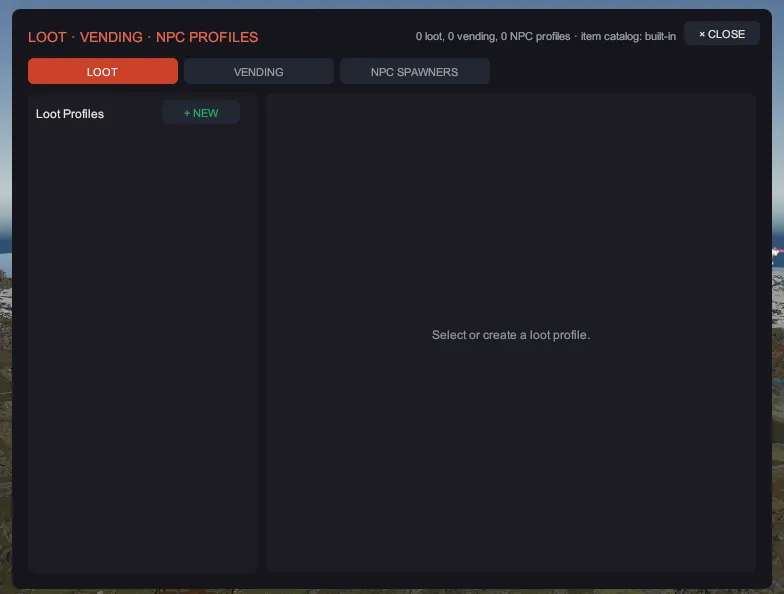
A profile is a recipe, and a placement is what attaches it to one object on the map. That split is the whole idea of the panel: you write “military crate, three to five rolls, these items at these weights” once, then attach it to as many crates as you like. Nothing you author here is a prefab, so nothing is visible in the viewport.
- Click + NEW in the Loot Profiles column. You get a uniquely named profile.
- Set Name, then Min rolls and Max rolls: how many item stacks the container spawns.
- Turn on Clear existing loot if the profile should replace the container’s own table rather than add to it.
- Click + ITEM under Items and search for the item. The picker searches the game’s own item
catalog, 1,243 items, and the panel’s status line says
item catalog: fullwhen that catalog loaded (item catalog: built-inmeans a short built-in list of staple items stands in). - On each item row set
min,maxandwt: the smallest and largest stack, and the relative weight that decides how often this item is the one picked. - Select the container in the viewport, then click + ATTACH under Placements (attach to selected container). If nothing is selected the panel says Select a container/machine in the scene first.
Every edit is one undo step. The × chip on a row removes it.
Vending
Section titled “Vending”The shape is the same, with sell orders instead of items:
- Click + NEW in the Vending Profiles column.
- Set Name (the profile’s own name) and Shop name (what players see on the machine).
- Turn on Broadcast to map if the shop should announce itself.
- Click + ORDER under Sell orders and pick the item being sold.
- On the order row set what is sold and how many, what it costs and how many of that, and
stk, the number the machine holds in stock. - Select the machine in the viewport and click + ATTACH.
Both sell and cost are pickers, so you can change either side of an order later without deleting
it.
NPC spawners
Section titled “NPC spawners”- Click + NEW in the Spawn Groups column.
- Set Name, Population max, Respawn min (s), Respawn max (s), and Initial spawn if the group should be full the moment the map boots.
- Click + PREFAB under NPC prefabs (from bundles) and pick the NPC. The list is read out of your content snapshot, not a fixed list, so NPC types Rust added since your last sync appear after you re-sync.
- Set
wton each prefab row to weight which of them a spawn picks. - Add the points the NPCs stand on: + AT CAMERA drops one where you are looking, or use the Spawn Points tool to click and drag them out on the terrain.
The group’s name is the link: a spawn point stores the name of its group, so renaming a group after
its points exist leaves them pointing at a group that is not there. The
Spawn Points panel marks those points (missing: name) in red,
which is the quickest way to find them after a rename.
What the server does with all this
Section titled “What the server does with all this”All three ride inside your .map as Creator’s own data, so there is no extra file, and applying them
needs the server extension: see Run your map on a server.
Without it, the crates hold their normal loot, the machines sell their normal stock and no NPC spawns.
With it, at map load:
| System | What is applied |
|---|---|
| Loot | The matched container’s table is replaced by your profile: cleared if you asked, then a weighted roll between Min rolls and Max rolls to pick the stacks. |
| Vending | The matched machine’s sell orders, shop name and broadcast flag are rebuilt from your profile. |
| NPC spawners | Each group becomes a real spawn group with your population and respawn numbers, its points are wired to it with their facings, and Initial spawn fills it immediately. |
Each one logs what it found, applied and skipped, and why, so a map that does nothing in game tells you which half is missing. An item shortname the server does not recognize is logged once and skipped rather than failing the load.
Creator refuses to save a set that a server could not make sense of, with Save blocked. and the reason: two profiles sharing a name, a profile with no name, or a placement or point that references a profile or group that does not exist. Fix what the message names and save again.